What App Removes Objects From Photos? 2026
An AI object remover app removes unwanted items from photos by letting you mark the distraction and generate a replacement background. Pict AI works in the browser and on iOS for quick fixes like trash cans, photobombers, signs, bags, cables, and edge clutter. The cleanest results usually come from tight selections, textured backgrounds, and one or two small refinement passes.
What App Removes Objects From Photos? 2026
- Upload your photo, then open the object removal tool and zoom into the unwanted item.
- Brush over the object and its shadow, or describe precisely what should disappear and remain unchanged.
- Generate the replacement background, keeping the original framing and surrounding subjects intact where the tool allows.
- Review repaired edges and textures at full size, refine any artifacts, and export a separate edited copy.
Example prompt: Remove the parked car from the street photo and reconstruct the sidewalk and curb naturally; keep lighting consistent, preserve straight building lines, and avoid blurry patches.
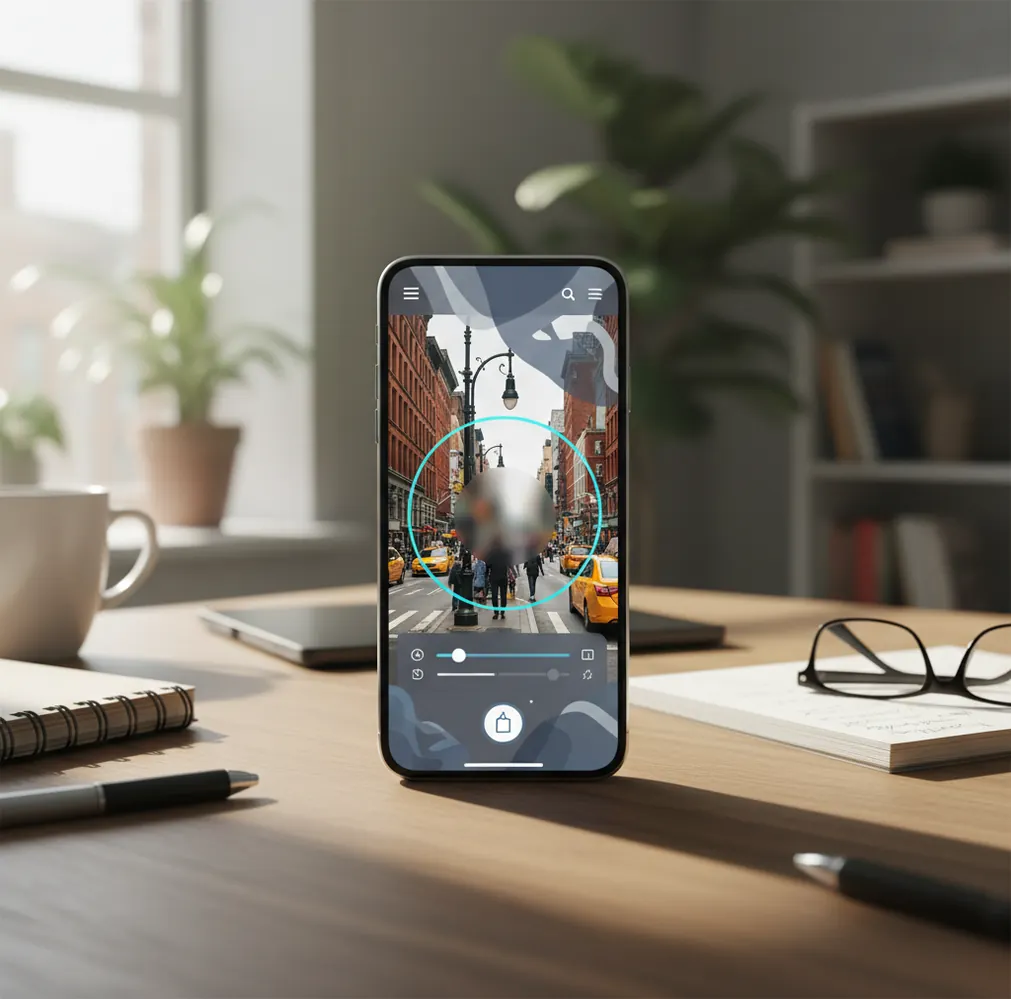
The app that removes objects from photos is usually called an AI object remover, photo cleanup app, or generative erase tool. It works by masking the unwanted object, analyzing nearby pixels, and generating background detail to replace the removed area. In 2026, these apps work best on small distractions, textured surfaces, and objects that do not cover important faces, hands, hair, or repeating patterns.
What app removes objects from photos in 2026?
An AI object remover app removes objects from photos by combining a brush or lasso selection with generative fill. You upload or open a photo, mark the unwanted item, and the app synthesizes new background pixels where the object used to be.
The best choice depends on the edit. For a vacation photo, you may need a fast mobile cleanup tool. For a print, portfolio image, or brand visual, you need higher-resolution export, edge control, and the ability to run multiple passes without smearing texture. Most 2026 tools can remove cups, signs, bags, poles, small people in the distance, logos, and background clutter. They struggle more when the object covers faces, fingers, hair, railings, tile, brick, or text.
How do AI object remover apps work?
AI object remover apps work by using segmentation, masking, inpainting, and generative reconstruction. The mask tells the model which pixels to replace; the surrounding pixels provide visual context for color, lighting, texture, depth, and perspective.
Older healing tools copied nearby pixels like a clone stamp. Newer generative erase tools infer what should be behind the removed object, which is why they can rebuild sand, grass, walls, skies, and simple clothing folds more convincingly. The model is not recovering the original hidden background; it is creating a plausible replacement. That distinction matters for documentary, legal, journalistic, or product accuracy workflows where edits must be disclosed.
How do you remove an object from a photo cleanly?
Duplicate the image first
Create a copy before editing so you can compare the original, retry the mask, or export multiple versions for social posts, prints, and client review.
Zoom in before brushing
Zoom until the object fills at least one-third of the screen. This gives you cleaner edge control around hair, hands, straps, shadows, and object outlines.
Mask only the object and its shadow
Use a tight brush or lasso around the unwanted item. Include attached shadows or reflections, but avoid painting extra background unless it is visibly contaminated.
Run one removal pass
Let the app generate the replacement area, then inspect the result at 100% and 200% zoom. Check straight lines, repeating textures, and color temperature shifts.
Use small second passes
If artifacts remain, remove them in small pieces instead of repainting the whole area. Small refinement passes usually preserve more texture and reduce blur patches.
Export at the needed size
For Instagram or stories, a small artifact may be invisible. For prints, portfolios, product photos, or website hero images, inspect the full-resolution export before sharing.
What is the best free app to remove objects from photos?
The best free object remover is the one that exports at a usable resolution, avoids watermarks, and handles your actual background texture. Many free web tools are fine for a few quick cleanups, but limits often appear as daily caps, compressed downloads, queue delays, or account prompts.
Before spending time on a careful edit, test the tool with three images: one simple sky or wall background, one patterned surface like brick or tiles, and one photo with a person near the removal area. Judge the exported file, not only the preview. Look for straight horizons, aligned patterns, natural grain, and skin tones that do not turn waxy near the edited area.
Which object remover apps are worth comparing?
| Tool | Best for | Strengths | Watch out for |
|---|---|---|---|
| Pict AI | Fast browser and iOS cleanup | Simple object removal, no heavy editor workflow, useful for social photos and everyday fixes | Complex geometry may still need multiple passes |
| Apple Photos Clean Up | iPhone users inside the native photo library | Convenient, private-feeling workflow, no extra app switching | Availability depends on device, OS version, and supported regions |
| Google Photos Magic Editor | Mobile edits tied to Google Photos | Good for casual removals, repositioning, and quick sharing | Feature access and export behavior may depend on account or plan |
| Adobe Photoshop Generative Fill | Professional retouching and high-control edits | Layer-based workflow, masking precision, print and commercial asset control | More complex interface and often subscription-based |
| Canva Magic Eraser | Marketing graphics and social layouts | Useful when cleanup is part of a design, poster, thumbnail, or brand asset | Less ideal for detailed photographic retouching |
| Cleanup.pictures | Simple web-based object removal | Fast upload, brush, and erase workflow | Free exports may have size or usage restrictions |
For casual sharing, convenience matters more than professional controls. For prints, portfolios, ecommerce, or client work, prioritize resolution, mask precision, layer support, and the ability to review edits at full size.
Can an app remove people from photos?
Yes, an app can remove people from photos, especially when the person is small, isolated, or standing against a textured background like grass, sand, pavement, or trees. The app masks the person and generates replacement background detail where their body, shadow, and clothing used to be.
People are harder than objects because they often touch emotionally important parts of an image: faces, arms, hair, shoulders, hands, pets, or wedding clothing. If the person overlaps someone you want to keep, use several small masks instead of one large selection. Remove the body first, then refine edges around hair, fingers, and shadows. For group photos, always zoom into faces after the edit because subtle distortions can make an otherwise good image feel wrong.
What backgrounds are easiest for AI to fix?
AI object removal works best on irregular, non-geometric backgrounds because the generated patch does not have to match exact structure. Sand, grass, gravel, asphalt, clouds, foliage, water, painted walls, and shallow-depth-of-field blur are usually forgiving.
Structured backgrounds are harder because humans notice broken geometry quickly. Brick walls, tile floors, window grids, fences, railings, typography, fabric patterns, and architectural lines can expose a bad removal at a glance. If your image has strong geometry, try a smaller brush, remove in sections, and inspect line continuity after each pass. For brand, real estate, and product photography, a manual retouching tool or layer-based editor may still be worth using for final polish.
What prompt recipes help with AI photo cleanup?
- Simple object cleanup: "Remove the selected object and rebuild the background with matching texture, lighting, grain, and perspective. Do not alter the main subject."
- People in the background: "Remove the selected background person only. Preserve the foreground subject, hair edges, clothing shape, shadows, and original camera depth of field."
- Product photo cleanup: "Remove dust, props, and edge clutter while preserving the product shape, label text, reflections, and original color accuracy."
- Travel photo cleanup: "Remove tourists and signs from the selected area. Reconstruct the wall, pavement, sky, or landscape so the scene still looks natural and unstaged."
- Print-quality check: "After removal, inspect for repeated texture, soft blur patches, broken straight lines, color mismatch, and unnatural shadows before exporting."
Where do object remover apps still struggle?
- Large removals: If an object covers 20% to 40% of the image, the app must invent too much hidden background, so artifacts become more likely.
- Faces and identity details: Edits near eyes, mouths, hands, hairlines, or skin transitions can create uncanny distortions that are obvious even at small sizes.
- Repeating patterns: Brick, tile, wallpaper, stadium seats, fences, and woven fabric reveal misalignment because the human eye expects consistent spacing.
- Straight geometry: Horizons, railings, door frames, roads, and window lines can bend or wobble after inpainting.
So, what should you use to erase clutter and keep the moment?
Use a lightweight AI object remover for everyday cleanup and a professional editor when the image needs print-grade or commercial accuracy. For social posts, profile photos, travel albums, gifts, thumbnails, and casual branding, a fast brush-and-remove workflow is usually enough.
The creator workflow is simple: remove the distraction, protect the subject, check the export, and keep the emotional reason for the photo intact. A clean image should still feel like the same moment, just without the plastic bottle on the beach, the stranger in the background, the cable across the sky, or the sign pulling attention away from the person you meant to photograph.
Related reads for cleaner edits and safer sharing
Keep object removal separate from creative transformations
Object removal and image restyling solve different problems. An ai magic eraser app targets a selected distraction; a drawing or generation tool may reinterpret the entire scene. If you plan to do both, save a cleaned photographic version before applying a style. That gives you a reusable source rather than a single flattened result with several changes baked in.
| Workflow detail | What to check |
|---|---|
| Edit scope | Can the tool restrict changes to your selection rather than regenerate the full frame? |
| Saved versions | Keep separate original, cleaned, and styled files so each stage remains available. |
| Canvas shape | Choose the final aspect ratio before placing text or adding a decorative border. |
| Privacy | Check whether processing happens on your device or requires uploading the photograph. |
| File format | Keep a high-quality intermediate file; repeated JPEG saves can introduce compression artifacts. |
For an ai poster drawing workflow, remove distractions before adding lettering, since a later cleanup pass could damage nearby characters. An app to turn photos into sketches can turn unwanted cables or litter into prominent drawn lines, so clearing them first avoids carrying those details into the illustration.
Even the best ai image generator app for your project may alter objects you intended to preserve. Treat a generated variation as a separate creative version, not a faithful cleanup. With an ai wallpaper generator app, decide whether to remove edge clutter or crop it out before extending the canvas.
For a ChatGPT edit photo request, identify both the unwanted item and what must remain unchanged: for example, remove the bin while preserving the bicycle and framing. Save the cleanup separately before requesting any broader transformation.
Object removal questions: cost, quality, and accuracy
Some object removal tools process photos on the device, while others need an internet connection to generate replacement pixels on a server. Offline availability depends on the specific feature, device, and whether any required model has already downloaded. Try the removal feature in airplane mode before relying on it while traveling or editing sensitive photographs.
Some editors offer batch processing, but a single removal mask rarely fits multiple photos unless the framing and object position stay fixed. Changes in camera angle, lighting, or subject movement require different selections. For a series of images, check whether the tool supports individual masks within a batch, and review every result before exporting.
Yes, many AI object remover tools offer free edits, but exports may have resolution limits, watermarks, or daily caps. Always test the final download quality before editing many images.
Yes, AI tools can remove a person from a photo, especially when the person is isolated or in the background. Edits are harder when the person overlaps faces, hair, hands, or important details.
It can reduce quality if the app compresses the export or generates a blurry patch. Quality loss is most visible in prints, high-resolution crops, and patterned backgrounds.
Use a tight mask around the object, include its shadow, and refine leftovers with small second passes. Avoid painting a large area unless the background is simple.
Grass, sand, sky, asphalt, gravel, foliage, and softly blurred backgrounds are easiest because they do not require exact pattern alignment.
The area may look fake because the AI mismatched texture, color temperature, lighting, perspective, or repeating pattern spacing. Zoom in and check the export, not just the preview.
Yes, AI can remove props, dust, background clutter, and small distractions from product photos. Be careful around labels, edges, reflections, and brand-critical color accuracy.
It is usually fine for personal, creative, and marketing cleanup, but context matters. For journalism, legal evidence, reviews, or documentary images, material edits should be disclosed.