Why AI Background Removers Cut Hair Badly
AI background removers cut hair badly when fine strands, curls, flyaways, or backlit edges blend into the background at the pixel level. The fix is usually a better source photo, higher edge contrast, and small local mask refinements instead of rerunning the same cutout over and over.
Why AI Background Removers Cut Hair Badly
- Upload the original portrait, keeping the full hair silhouette visible rather than cropping tightly around the face.
- Choose background removal and, if instructions are supported, request preservation of curls, fine strands, and natural hair volume.
- Generate the cutout, then compare the hairline with the original to identify missing locks or leftover background color.
- Review edges against your intended background, refine available mask controls, and export a transparent PNG at the required dimensions.
Example prompt: Remove the background and keep natural hair flyaways; replace background with soft mid-gray studio backdrop, preserve fine strands, avoid halos, high-resolution cutout
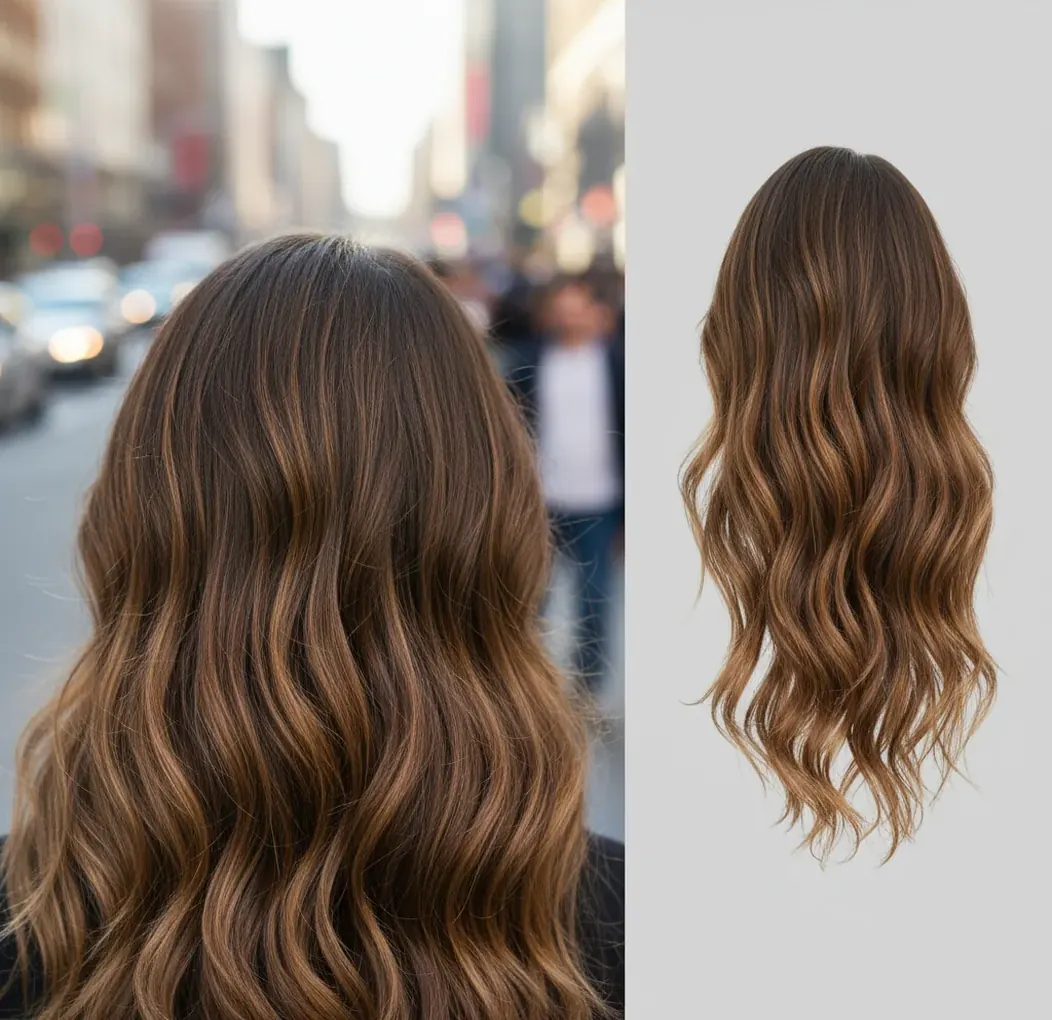
AI background removers cut hair badly because hair edges contain mixed pixels: part hair, part background, part shadow, and sometimes compression noise. Segmentation models must guess which pixels are foreground and how transparent each edge pixel should be, so low contrast, blur, backlight, and JPEG artifacts often create chopped strands, see-through hair, or halos.
What Does It Mean When AI Background Removers Cut Hair Badly?
When AI background removers cut hair badly, the mask removes real hair, thins the hairline, or leaves a visible bright or dark fringe after the background is replaced. The most obvious signs are chopped flyaways, crunchy curls, missing baby hairs, transparent edges, or a halo that looks fine on white but terrible on a darker background.
This is not just a cosmetic issue. Hair is one of the hardest subjects in AI pixel background removal because it is thin, irregular, semi-transparent, and full of tiny gaps. A clean cutout must preserve the subject shape while estimating soft transparency around individual strands. If that estimate is too aggressive, hair disappears; if it is too loose, the old background sticks to the edge.
Why Do AI Background Removers Struggle With Hair Edges?
AI background removers struggle with hair because the hairline is made of mixed pixels, not clean object boundaries. A single edge pixel may contain a strand of hair, skin tone, background color, shadow, and JPEG compression blocks. The model has to predict both a foreground mask and an alpha matte, which means it is estimating how opaque or transparent each pixel should be.
Most tools use semantic segmentation to identify the subject, then image matting to soften complex edges. Hair breaks both steps: curls create holes that resemble background, flyaways look like noise, and backlighting turns the outline into a glow instead of a crisp boundary. Small changes in focus, lighting, or export quality can flip a pixel from foreground to background, which is why two cutouts of the same portrait can produce different hairlines.
How Do You Stop Background Removal From Chopping Hair?
Start With The Sharpest Original
Use the original camera file when possible, not a screenshot, social media download, or compressed messaging-app image. Hair strands need real pixel detail; once compression turns them into blocks, the remover has less information to preserve.
Choose The Frame With The Best Contrast
Pick a photo where the hair is visibly different from the background. Dark hair against a pale wall or light hair against a darker backdrop gives the model a clearer boundary than brown hair on wood, black hair on a black jacket, or curls against foliage.
Run The Cutout Once, Then Inspect At 150% To 300%
Zoom into temples, shoulders, curls, and backlit flyaways immediately after background removal. Hair errors are easiest to fix before you resize, add effects, or place the portrait into a final social post, print, or thumbnail layout.
Preview On Gray, Black, And White Backgrounds
A white preview can hide bright halos, while a black preview can hide dark halos. Mid-gray is usually the best diagnostic color because it reveals both missing hair and leftover background fringe.
Refine Only The Hairline
Avoid global smoothing if the only problem is around the hair. Restore missing strands locally, reduce edge transparency where hair looks see-through, and feather only the halo zone so the whole subject does not shrink.
Export Large, Then Downscale Once
Export at a higher resolution than the final use, then resize once at the end. Downscaling after cleanup can make edges look more natural, while enlarging a small cutout exaggerates jagged hair and mask defects.
Which Source Photos Give The Cleanest Hair Cutouts?
The cleanest hair cutouts come from sharp, high-resolution photos with clear separation between hair and background. A phone portrait can work well if the hair is in focus, the lighting is even, and the file has not been heavily compressed. The ideal setup is simple: subject one to two meters from the background, soft front or side light, and no strong backlight bleeding through the hair.
For creators, this matters before the edit starts. A headshot for LinkedIn, a salon before-and-after, a YouTube thumbnail, or a model photo for e-commerce will all survive background removal better when flyaways are visible as strands instead of blur. If you can reshoot, use a plain contrasting wall, disable beauty filters, wipe the lens, and avoid screenshots. Better input reduces the amount of manual edge repair later.
Which Background Remover Is Best For Messy Hair Edges?
| Tool Type | Best For | Hair-Edge Strength | Tradeoff |
|---|---|---|---|
| Pict AI | Fast browser or iOS cutouts for creator graphics, profile photos, and social posts | Good for quick hairline checks when the source photo has decent contrast and focus | Still depends on source quality; severe backlight or blur may need manual cleanup |
| Adobe Photoshop | Professional retouching, print work, composites, and high-control masking | Strongest manual control with Select and Mask, brushes, channels, and layer masks | Slower workflow and steeper learning curve than one-click web tools |
| Canva | Brand kits, thumbnails, presentations, and quick design layouts | Convenient for simple portraits and design-ready exports | Fine hair refinement is less precise than dedicated masking tools |
| remove.bg | Fast automated cutouts for people, products, and batch-style workflows | Often handles simple hair edges well with minimal setup | Complex curls, veils, and color-matched backgrounds can still leave halos |
| Pixelcut | Mobile-first product images, creator assets, and marketplace visuals | Useful for quick subject isolation and small-format social graphics | Less ideal when you need pixel-level hair repair for large prints |
No background remover is universally best for hair. Automated tools are fastest when the source photo is clean; Photoshop-style editors are best when the cutout must survive close inspection, large prints, or complex compositing.
What Edge-Repair Recipes Fix Halos, Flyaways, And See-Through Hair?
- Bright halo around dark hair: place the cutout on mid-gray, select only the glowing edge, reduce edge contamination, and feather by about 0.5 to 1.5 pixels. Do not blur the whole mask, because global blur makes the head shape smaller and softer.
- Dark fringe around light hair: preview on white and light beige, then erase or desaturate the leftover dark rim in small strokes. Keep the inner hair texture intact so blond, gray, or highlighted hair does not turn into a flat helmet shape.
- Missing flyaways: use a restore brush or mask brush at a small radius and low hardness, then paint back only strands that follow the natural hair direction. Random restored pixels look like noise; directional strokes look like hair.
- See-through curls: increase local opacity on the curl edge and avoid strong transparency settings in gaps between curls. Curly hair needs some internal holes, but the outer silhouette should not look washed out.
- Generative repair prompt: "Restore natural fine hair strands along the edge only, matching the subject's hair color and direction. Keep the face, clothing, and background unchanged." Use this only for creative images, not official ID photos.
- Manual mask recipe: duplicate the cutout, put a gray layer behind it, zoom to 200%, repair the hairline first, then check the result on the final background. This prevents over-editing areas that will not be visible in the final design.
When Will Hair Still Look Bad After AI Pixel Background Removal?
- Blown-out backlight can make the hair boundary brighter than the hair itself, so the alpha matte treats real strands as glow or background spill.
- Heavy JPEG compression creates square artifacts around the hairline. The model may preserve the blocks as hair or erase the real strand detail between them.
- Motion blur merges individual strands into a soft smear, especially around curls, ponytails, and loose hair near shoulders.
- Similar colors confuse the mask, such as brown hair on a wooden wall, black hair on a black hoodie, or gray hair against a gray backdrop.
Where Do Hair-Safe Cutouts Matter Most For Creators?
Hair-safe cutouts matter most anywhere the subject is the emotional focus of the image. A jagged hairline can make a polished LinkedIn headshot feel fake, a salon transformation look unprofessional, or a creator thumbnail look cheaply composited. Viewers may not identify the mask error consciously, but they notice that the portrait feels pasted on.
The highest-risk formats are profile photos, team pages, creator thumbnails, e-commerce model shots, music artwork, portfolio composites, graduation graphics, memorial prints, and gift designs. These images often place a person on a clean, branded, or high-contrast background, which makes every halo visible. For social posts, a small flaw may pass; for prints or client work, inspect the cutout at full size before delivery.
What Is The Best Practical Fix If The Same Image Keeps Failing?
If the same image keeps failing, stop rerunning the remover and change the input or the repair method. Try a higher-resolution original, a frame with sharper hair, or a version with slightly improved contrast before removal. Repeating the same low-quality file usually produces variations of the same chopped edge.
A practical decision rule is simple: reshoot if the hair is blurred, relight if the background and hair are the same tone, and manually refine if the cutout is mostly correct but has a local halo. Tools like Pict AI can speed up the preview-and-repair loop, but the core principle stays the same: hair edges improve when the model receives clearer pixels and the editor fixes only the fragile boundary.
Keep reading: other AI image quirks explained
Choose a Hair Repair Method Without Rebuilding the Whole Portrait
Before choosing a repair tool, compare the cutout with the untouched portrait at the same size. Separate three failures: strands hidden by the mask, strands carrying the old background color, and strands absent from the source image. These require different corrections; treating all three as a selection problem can make the hairline worse.
| Approach | Best use | Honest trade-off |
|---|---|---|
| Local mask painting | Restoring a clipped lock or a solid section of curls visible in the original. | Preserves photographed detail, but painting with full opacity can also restore background between strands. |
| Color decontamination | Correcting green, blue, or other background tint on retained hair edges. | Changes edge color rather than recovering missing strands. Aggressive settings can desaturate dyed hair or highlights. |
| Channel-based masking | Extracting fine strands when one color channel separates hair from the backdrop clearly. | Offers precise control in a layer editor, but needs manual work and struggles with textured backgrounds. |
| Localized generative repair | Rebuilding a small missing patch when plausible appearance matters more than exact fidelity. | Invents detail. It may alter curl direction, hair volume, or the silhouette rather than restore the photographed strands. |
Keep the original image beneath the repaired layer so every change remains reversible. For product campaigns featuring wigs, salon portfolios, or documentary portraits, favor methods that retain actual photographed detail. Generated hair can misrepresent the subject even when the result looks convincing.
An ai image extender addresses a different problem: insufficient canvas around the portrait. It may help create room for a wider composition, but extending the frame does not correct an existing hair mask. Finish the cutout repair separately, and judge success by the intended output size, not by whether every strand looks perfect at extreme magnification.
Hair Cutout Problems and Repair Questions
No. PNG can preserve transparency, but it also preserves mistakes already present in the cutout. Missing strands, tinted edges, and incorrect opacity remain unchanged. JPEG does not support transparency and requires a solid background. Keep an editable version with its mask when possible, then export a transparent PNG only after correcting the hair edges.
Generative AI can create plausible replacement strands, but it cannot reliably recover the exact hair detail that was removed. If the original photo still contains those strands, restoring them through the mask is more faithful. Use generative repair sparingly for small gaps, and inspect whether it changes the hairline, curl pattern, or apparent volume.
Hair edges contain mixed pixels, semi-transparent strands, shadows, and background color. The model has to estimate both the subject mask and edge transparency, so small errors remove real hair or leave a halo.
See-through hair usually means the alpha matte is too low at the edge, so real strands are being treated as partially transparent background. Backlighting, blur, and low resolution make this more likely.
Preview the cutout on a mid-gray background, then fix only the halo area with local edge refinement, decontamination, or a small feather. Avoid smoothing the whole mask because it can shrink the hairline.
Curly hair creates many small gaps, overlaps, and shadow pockets that can look like background texture to the model. Compression or motion blur makes those gaps harder to separate.
It is usually both, but the photo comes first. Sharp focus, higher resolution, clean lighting, and contrast behind the hair solve many failures before the AI model makes a mask.
Yes, if the damage is minor. Use a background remover or photo editor with local restore, erase, feather, and preview-background controls so you can repair the hairline without rebuilding the whole image.
Mid-gray is the best diagnostic background because it reveals both light and dark halos. You should also test on the final background color before exporting.
Yes, higher resolution usually helps because the model can see more strand detail and smoother edge transitions. Upscaling after a bad cutout does not recover lost hair, so start with the largest clean original.
Only if the issuing authority explicitly allows edited backgrounds. Many official ID systems reject altered images, so do not rely on AI-edited cutouts for regulated documents without checking the rules.