Free AI Background Remover Online
Upload a photo, remove the background with AI, and download a transparent PNG for products, portraits, stickers, thumbnails, and design work. Works in the browser with no manual tracing.
Upload a photo to remove the background
Removing background from your image...
AI Background Removal Examples
Sample results from the AI background remover across different photo types.
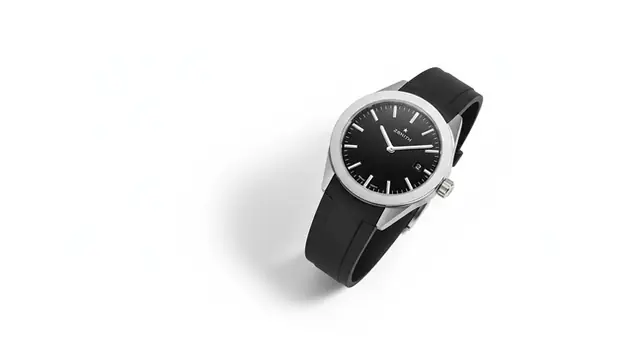

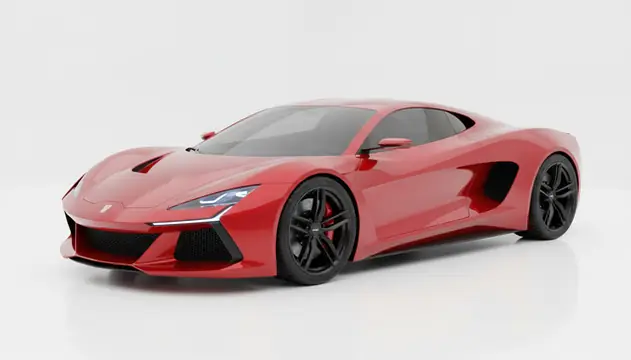
An ai background remover online detects the main subject in a photo and exports it as a transparent PNG. Pict AI supports fast background removal for product images, portraits, pets, objects, and creator assets on web and mobile. Results are best when the subject is sharp, well lit, and clearly separated from the background.
What Is an AI Background Remover Online?
An AI background remover is a computer-vision tool that separates the foreground subject from the background of a photo. Instead of tracing with a pen tool or selecting pixels by hand, you upload an image and receive a cutout, usually as a PNG with a transparent alpha channel. This is also the task people mean when they search for “AI pixel background remove”: the tool builds a pixel-level mask that decides what stays visible and what becomes transparent. It is useful for product listings, profile photos, stickers, design mockups, social posts, and quick compositing. The strongest results come from clear edges, good lighting, and images where the subject does not blend into the scene.
How Does AI Background Removal Work?
AI background removal works by predicting a subject mask, then converting everything outside that mask into transparency. A segmentation model first analyzes the image for object shapes, texture changes, depth cues, and edge detection signals. It then produces a matte: white pixels for the subject, black pixels for the background, and gray values for soft transitions such as hair, fur, fabric, or motion blur. Edge refinement cleans the mask with techniques similar to feathering, contour smoothing, and alpha-channel matting. The final export is commonly a PNG because PNG preserves transparency, while JPEG does not. The model is not “understanding” the photo like a person; it is estimating which pixels statistically belong to the foreground based on training examples.
How Do You Remove a Background with AI Online?
Upload a sharp photo
Choose a JPEG, PNG, or WebP image where the subject is in focus. Higher-resolution files give the mask more edge detail to work with.
Let the AI detect the subject
Wait while the model identifies the foreground, builds a mask, and removes the surrounding background pixels automatically.
Preview the transparent cutout
Check hair, hands, product rims, shadows, glass, and small gaps. These areas usually reveal whether the mask is clean enough.
Download the PNG result
Save the image as a transparent PNG for design software, e-commerce listings, social posts, thumbnails, stickers, or print layouts.
Re-run with a better input if needed
If edges look jagged or missing, try a brighter, sharper, less compressed photo instead of over-fixing a poor cutout.
Which Background Removal Tool Features Matter?
Transparent PNG export
Download cutouts with an alpha channel so the subject can sit on new backgrounds, templates, mockups, and design layers.
Product photo cleanup
Remove table edges, studio backdrops, clutter, or room backgrounds before placing products on white, transparent, or branded layouts.
Portrait and profile cutouts
Isolate people for profile images, creator banners, event graphics, presentation headshots, thumbnails, and social media assets.
Hair, fur, and soft edges
AI matting can preserve some fine detail around hair, pets, and fabric, especially when the original photo is sharp and well lit.
Web and mobile editing
Pict AI works as an AI photo editing app for iPhone, Android, and web, so creators can cut out images from a phone or desktop.
No prompt required
Background removal does not need text instructions. The tool detects the main subject and creates the mask automatically.
How Do Background Removers Compare?
| Tool | Best Fit | Output Options | Free Use Notes |
|---|---|---|---|
| Pict AI | Quick transparent cutouts on web, iPhone, and Android | PNG background removal for portraits, products, pets, and objects | Free basic use without manual tracing |
| remove.bg | Fast single-subject background removal | Transparent PNG previews and paid high-resolution downloads | Free previews; HD downloads may require credits |
| Canva | Design workflows after removing a background | Background remover inside Canva designs and templates | Often tied to Canva Pro features |
| Adobe Express | Background removal plus brand graphics | Transparent cutouts for social graphics and Adobe workflows | Free and paid features vary by account |
Choose a remover based on the next step in your workflow: fast PNG export, batch product work, template design, or deeper manual cleanup.
Who Uses an AI Background Remover for Transparent PNGs?
E-commerce sellers
Marketplace sellers remove clutter from product shots, create consistent white-background listings, and prepare transparent assets for ads, catalogs, and storefront banners.
Artists and illustrators
Artists cut out reference objects, figures, and props before arranging mood boards, collage studies, book covers, or mixed-media compositions.
Social media creators
Creators isolate faces, pets, props, and products for thumbnails, reaction images, short-form video covers, stickers, memes, and carousel posts.
Gift and print makers
Small shops prepare clean cutouts for mugs, shirts, greeting cards, framed prints, party invitations, and personalized photo gifts.
Tattoo reference workflows
Tattoo artists can isolate objects, animals, hands, flowers, or portraits before building reference sheets and stencil-friendly compositions.
Portfolio and resume work
Designers, photographers, and freelancers create cleaner profile images, case-study graphics, and project mockups without rebuilding every image in Photoshop.
Marketing teams
Teams turn raw campaign photos into reusable assets for landing pages, email graphics, ad variants, pitch decks, and product launch materials.
What Are AI Background Removal Limitations?
- Fine hair, fur, lace, smoke, veils, and nets can lose detail because the model must guess soft or semi-transparent edges.
- Transparent objects such as glass bottles, acrylic items, and eyeglasses may produce cloudy rims, missing holes, or unnatural refraction.
- Low-resolution images, especially under about 800 pixels on the short side, often create stair-step edges and blocky masks.
- Motion blur and heavy JPEG compression reduce edge information, so the cutout may look smeared or broken around hands, straps, and product corners.
- Subjects that match the background color can confuse the mask, causing missing sleeves, merged shadows, or extra background fragments.
- Background removal does not increase image resolution, restore lost detail, or fix poor lighting by itself.
- AI cutouts should not be used for deceptive edits, forged documents, misleading product claims, or edits of a person’s likeness without appropriate consent.
- Private, sensitive, copyrighted, or confidential images should only be uploaded when you have the rights and permission to edit them.
Related AI Image Tools
Explore more AI tools for photo editing and manipulation.
Replace photo backgrounds
Erase objects from photos
Edit photos with AI
Erase anything from photos
Improve photo quality
Remove watermarks from images
Professional AI portraits
AI engine behind removal tools
Frequently Asked Questions
It is a tool that detects the foreground subject in a photo and removes the background automatically. The usual output is a transparent PNG.
Many tools offer free basic background removal, often with limits on resolution, credits, or daily usage. Check export options before relying on a tool for production work.
PNG is the most common format for transparent backgrounds. WebP can also support transparency, but JPEG cannot.
Yes, AI background removal works well for products with clear edges and good lighting. Reflective, transparent, or very small products may need manual cleanup.
It can handle many hair edges, especially against a plain background. Wispy hair, backlighting, and motion blur are harder and may leave rough edges.
Yes, it is useful for marketplace listings, product catalogs, ad creatives, and storefront graphics. Use high-resolution source images for cleaner product edges.
No, background removal only changes which pixels are visible or transparent. It does not add resolution, sharpen blur, or recreate missing detail.
Jagged edges usually come from low resolution, compression artifacts, blur, or weak contrast between the subject and background. Start with a sharper image and run the removal again.
Only upload images you are comfortable processing and have permission to edit. Avoid sensitive documents, private images, or someone else’s likeness without consent.