Free AI Image Editor Online
Upload a photo, describe the edit, and get a revised image in seconds. Edit on the web, iPhone, or Android without learning layers, masks, or manual retouching tools.

Upload a photo to edit with AI
Applying AI edits to your photo...
AI Photo Editing Examples
Sample results from the AI image editor showing various edit types.
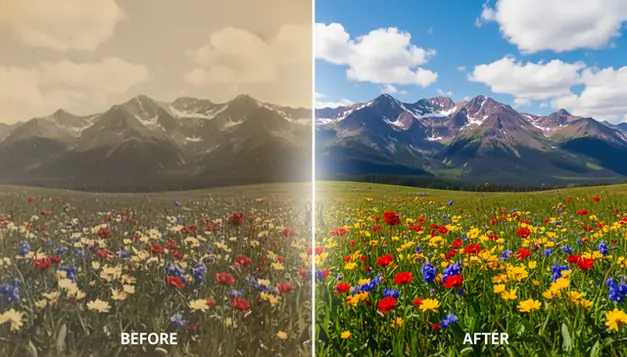
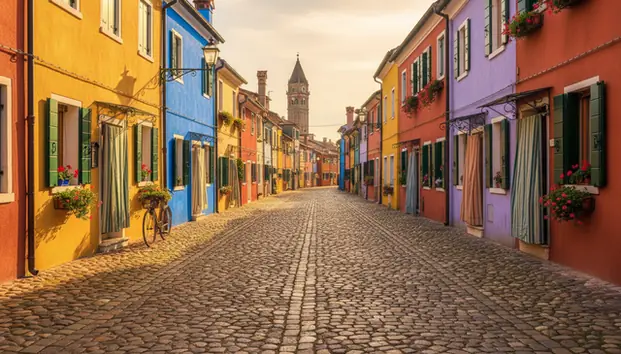
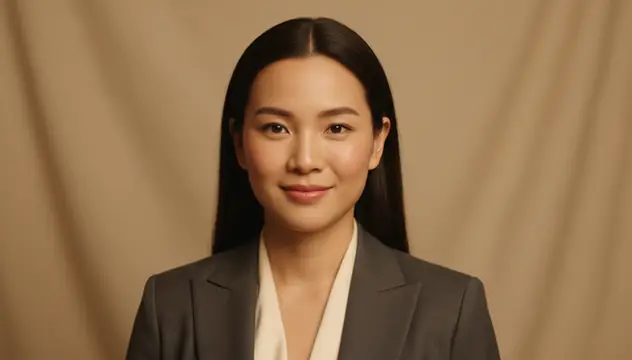
An ai image editor changes photos from text instructions, masks, or selected areas instead of requiring manual brush and layer work. Pict AI supports prompt-based photo editing for object removal, background swaps, portrait cleanup, lighting changes, and style edits on web and mobile. It works best when the uploaded image is high resolution and the requested change is specific.
What Is an AI Image Editor?
An AI Image Editor is a photo editing tool that interprets natural language instructions and applies the requested change to an image. Instead of manually selecting clone tools, adjustment layers, and sliders, you can write “remove the person in the background,” “make this look like golden hour,” or “clean up the product photo.” The editor then predicts which pixels should change and which should stay untouched. This makes common editing jobs faster for creators, shop owners, students, and casual users. It is not a full replacement for expert retouching, but it is practical for quick social posts, selfie improvements, background cleanup, color correction, object removal, and first-pass creative drafts.
How an AI Image Editor Works
AI photo editing combines image analysis with text-guided generation. The system first reads the uploaded photo, detects subjects and edges, and may build a segmentation mask to separate people, objects, background, hair, clothing, or sky. If you brush over an area, that mask acts like an alpha channel telling the model where edits are allowed. For removals, an inpainting model fills the masked region using nearby texture, lighting, and perspective. For prompt edits, a diffusion model predicts new pixels that match the instruction while trying to preserve identity, pose, and composition. Good results depend on image resolution, mask accuracy, prompt clarity, and how complex the scene is.
How to Edit Photos with AI
Upload the original photo
Start with the highest-resolution version available. Images above 800 pixels on the long side usually preserve faces, fabric, product edges, and background texture better.
Choose the edit type
Pick object removal, background change, text-guided editing, portrait retouching, color correction, or outpainting depending on the job you want done.
Describe one clear change
Write a short prompt with the subject, action, and style, such as “remove the parked car” or “make the lighting soft and warm.” Avoid combining five edits in one prompt.
Mask the affected area
For precise edits, brush slightly beyond the object boundary. A 5 to 15 pixel margin helps prevent ghost outlines, hard seams, and missed shadows.
Preview, refine, and export
Zoom in before downloading. If the first result is close, make a smaller second pass instead of regenerating the whole image and risking identity drift.
AI Photo Editing Features
Object removal
Remove people, trash, wires, logos, background clutter, and unwanted objects by masking the area and letting inpainting rebuild the missing pixels.
Background changes
Swap a messy room, plain wall, or outdoor scene for a cleaner background while keeping the main subject visible and centered.
Text-guided edits
Type requests like “turn the sky blue,” “add a red jacket,” or “make the photo look cinematic” and let the model apply the visual change.
Selfie improvement
AI photo editors improve selfies by balancing exposure, softening minor blemishes, reducing harsh shadows, and keeping the face more natural than heavy filters.
Style transfer
Apply visual moods such as film grain, watercolor, editorial fashion, vintage print, cyberpunk lighting, or pencil-sketch-inspired looks.
Outpainting
Extend an image beyond its original borders for thumbnails, banners, posters, and social crops when the original frame feels too tight.
AI Photo Editor vs Photoshop, Canva, and Picsart
| Tool | Best for | Platforms | Free option | Editing style |
|---|---|---|---|---|
| Pict AI | Fast prompt edits, object removal, background swaps, selfie cleanup | Web, iPhone, Android | Free basic use | Text prompts, masks, and quick AI edits |
| Adobe Photoshop | Professional compositing, layer work, precision retouching | Desktop, web, iPad | Trial only | Manual tools plus generative fill |
| Canva | Social graphics, templates, simple image cleanup | Web, iPhone, Android | Free tier available | Template-first design with AI tools |
| Picsart | Mobile creator edits, filters, stickers, social content | Web, iPhone, Android | Free tier available | Mobile-first creative editing |
Use prompt-based editing when speed matters, Photoshop when pixel-level control matters, Canva for layout-heavy posts, and Picsart for mobile social effects.
Who Uses AI Photo Editors?
Social media creators
Creators use AI editing to fix lighting, remove background distractions, make thumbnails, extend crops for vertical video covers, and test visual styles before posting.
Selfie and portrait editors
AI photo editors improve selfies by detecting faces, correcting uneven lighting, reducing small blemishes, softening shadows, and preserving a more realistic facial structure than extreme beauty filters.
Artists and illustrators
Artists use prompt edits to explore color palettes, lighting references, pose variations, and mood boards before committing to a painting, collage, or digital illustration.
Small business owners
Shop owners clean product photos, replace cluttered backgrounds, brighten details, and create consistent marketplace images without scheduling a new shoot.
Gift and print makers
Users prepare family photos, pet portraits, cards, posters, and framed prints by removing distractions, repairing lighting, and testing artistic styles before printing.
Tattoo reference workflows
Tattoo clients and artists can simplify a photo into a clearer reference, isolate a subject, test placement concepts, or convert visual ideas into cleaner inspiration material.
Portfolio and presentation work
Designers, students, and freelancers use AI edits to clean case-study images, improve mockups, remove personal details, and keep portfolio visuals consistent.
AI Image Editing Limitations
- Small text, signs, labels, and logos may become misspelled or distorted after generation.
- Hands, jewelry, glasses, hair strands, and overlapping fingers can still produce visual artifacts.
- Very low-resolution or heavily compressed images often lose texture and detail after one or two edits.
- Repeated full-frame edits can cause identity drift, especially in faces, pets, and branded products.
- Background replacement may leave halos around hair, fur, transparent fabric, or motion blur.
- Outpainting can repeat patterns in grass, brick, wallpaper, waves, and crowds if the source image has limited visual context.
- The tool cannot verify whether an edit is legal, authentic, or consented to; avoid impersonation, watermark removal, and deceptive edits.
- Professional print, advertising, legal, and news use should include manual review at 100% zoom before publication.
Related AI Editing Tools
Explore more AI tools for photo editing and enhancement.
Create images from text
Remove image backgrounds
Erase objects from photos
Remove watermarks from images
Improve colors and detail
Sharpen blurry photos
Erase anything from photos
AI engine behind the editor
Frequently Asked Questions
It is a tool that changes photos using text prompts, masks, or automated image analysis. It can remove objects, adjust lighting, retouch portraits, and replace backgrounds without traditional layer-by-layer editing.
Yes, many tools offer free AI photo editing with limits on exports, resolution, or daily generations. Free editing is usually enough for quick social posts, profile photos, and simple object removal.
They detect the face, balance exposure, reduce harsh shadows, soften minor blemishes, and adjust color without needing manual retouching. The best results come from natural prompts rather than extreme beauty-filter instructions.
AI editing is faster for common tasks like object removal, background swaps, and quick portrait cleanup. Photoshop is still better for precise compositing, commercial retouching, print production, and detailed layer control.
Clear, high-resolution photos with good lighting and a visible subject work best. Blurry, tiny, dark, or heavily compressed images give the model less detail to preserve.
Yes, especially when the background has predictable texture such as sky, wall, grass, water, or pavement. Complex scenes may need a wider mask and a second refinement pass.
Yes, AI can replace or blur backgrounds while keeping the subject. Hair, fur, glass, and transparent fabric are the hardest edges to preserve cleanly.
They are safe for personal and creative use when you own the image or have permission. Avoid deceptive edits, impersonation, watermark removal, or changes to someone’s likeness without consent.
Face changes usually happen after repeated full-image edits or broad prompts that affect the whole frame. Use smaller masks and localized edits to preserve identity.