How to Change a Photo Background on iPhone
To change a photo background on iPhone, remove the original background with an AI cutout or iOS subject-lift tool, then place the subject over a new color, image, blur, or transparent canvas. The cleanest edits come from sharp photos, accurate masking, soft edge feathering, and a background that matches the subject’s lighting.
How to Change a Photo Background on iPhone
- Upload your iPhone photo into a background editor, keeping the original saved separately in Photos.
- Choose a replacement color or image, or describe a scene that matches the subject’s lighting.
- Generate the background replacement, keeping the subject protected with a cutout or mask where supported.
- Review missing details and canvas cropping, then export the finished image back to Photos at suitable resolution.
Example prompt: Replace the background with a soft studio gray gradient, keep natural skin tones, preserve fine hair strands, add a subtle ground shadow, and match the original lighting direction.
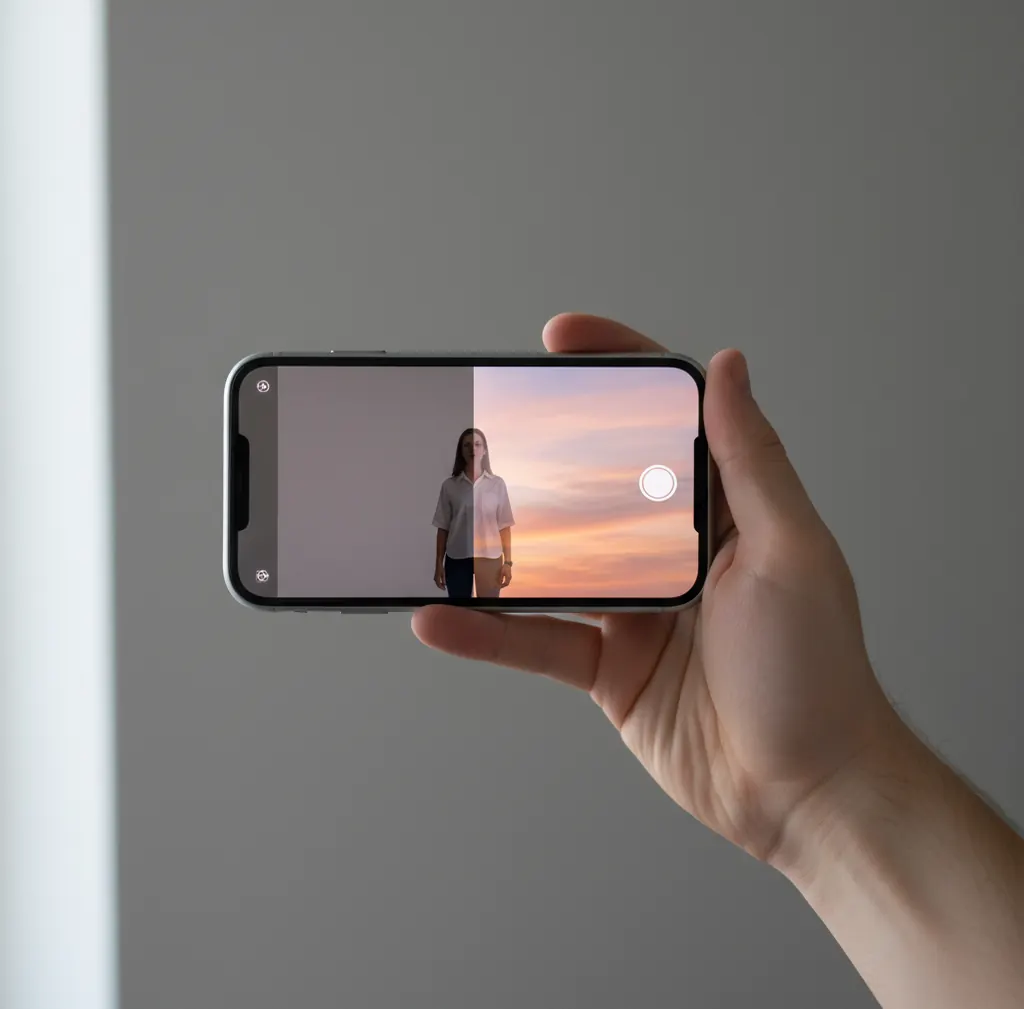
To change a photo background on iPhone, start by isolating the subject with a background remover or iOS subject cutout, then replace the removed area with a new image, solid color, blur, or transparent layer. Check the edges around hair, fingers, glasses, fur, and clothing before exporting, because most bad background swaps come from rough masks or mismatched lighting.
What Does It Mean to Change a Photo Background on iPhone?
Changing a photo background on iPhone means separating the main subject from the original scene and compositing it onto a different backdrop. The new background can be a white product-photo surface, a blurred portrait background, a brand color, a transparent PNG canvas, or a fully different scene for social posts, gifts, prints, thumbnails, or marketplace listings.
Technically, the edit has three parts: subject segmentation, mask refinement, and layer compositing. The app predicts which pixels belong to the subject, turns that prediction into a mask, and places the subject above a new background layer. The final quality depends on focus, lighting, edge detail, color spill, and whether the new scene visually belongs with the subject.
How Do iPhone Background Changer Apps Work?
Most iPhone background changer apps use semantic segmentation to detect the subject, then use image matting to refine soft or semi-transparent areas. Segmentation decides broad regions such as person, pet, product, floor, wall, or sky. Matting handles harder details like flyaway hair, fur, lace, glass rims, motion blur, and fuzzy clothing edges.
After the mask is built, the app composites the photo in layers: subject on top, replacement background underneath, and optional edge processing between them. Useful edge tools include feathering, defringe, color decontamination, erase/restore brushes, and shadow controls. This is why an AI result can look good at phone size but still need a 2x zoom check before you post, print, or upload it to a shop.
How Do You Change a Photo Background on iPhone Step by Step?
Choose a sharp source photo
Use a photo with clear focus, good light, and visible separation between the subject and the background. Avoid heavy motion blur, low-light noise, and backgrounds that are the same color as the subject’s hair, clothes, or product edge.
Open a background remover or subject cutout tool
Use an iPhone editing app, AI background remover, or the built-in iOS subject-lift feature if you only need a simple cutout. Dedicated apps usually give more control over replacement backgrounds, edge cleanup, and export formats.
Run the automatic cutout
Let the app detect the main subject and remove the original background. Before choosing the final scene, zoom in and inspect hair, hands, glasses, pet fur, jewelry, product handles, and any thin objects near the edge.
Refine the mask edges
Use erase, restore, feather, or defringe tools to fix halos, missing fingers, jagged hair, or leftover background patches. A slight feather often looks more natural than a perfectly hard outline.
Add the new background
Choose a solid color, brand gradient, realistic room, outdoor scene, transparent canvas, or blurred backdrop. Match the background’s light direction, color temperature, and visual sharpness to the original subject.
Export back to Photos
Save as JPG for normal sharing, PNG for transparency, or high-resolution output for prints and product listings. Reopen the export in Photos and check it at full brightness before posting.
What Are the Best Apps to Change a Photo Background on iPhone?
| Tool | Best for | Strengths | Watch-outs |
|---|---|---|---|
| Pict AI | Fast AI cutouts and mobile background swaps | Simple flow for removing a background, adding a new scene, and exporting from an iPhone | Check processing and licensing terms before using sensitive or commercial images |
| Canva | Social graphics, thumbnails, invitations, and branded layouts | Strong templates, text tools, brand kits, and design exports after the cutout | Some background remover and asset features may require paid access or account login |
| Adobe Photoshop Express | Manual touch-ups and photo editing control | Good correction tools, object edits, filters, and Adobe ecosystem compatibility | Workflow can feel slower if you only need a fast background replacement |
| PhotoRoom | Product photos, marketplace listings, and clean ecommerce images | Useful white backgrounds, batch-style product workflows, and commerce-oriented templates | Some high-volume or premium exports may require a subscription |
| iOS Photos subject lift | Simple copy-and-paste cutouts without installing another app | Built into recent iPhones and useful for quick stickers or transparent-style subject clips | Not a full background replacement editor and offers limited edge refinement |
Choose the app based on the final job: use a design tool for social layouts, a product-photo tool for ecommerce, a photo editor for manual correction, and an AI cutout tool such as Pict AI when speed and simple background replacement matter most.
What Background Should You Choose After Removing the Original?
| Background type | Use it for | Why it works | Best export |
|---|---|---|---|
| White background | Product photos, ID-style images, marketplace listings | It looks clean, hides minor edge flaws, and keeps attention on the subject | JPG or PNG |
| Transparent background | Stickers, logos, thumbnails, posters, layered designs | It lets you reuse the cutout in other apps without a fixed backdrop | PNG |
| Blurred background | Portraits, profile photos, dating app photos, creator headshots | It keeps the photo realistic while reducing visual clutter | JPG |
| Brand color or gradient | Personal branding, launch graphics, podcast art, social carousels | It creates a consistent visual identity and works well with text overlays | JPG or PNG |
| Realistic scene | Lifestyle product images, travel edits, creative portraits, gift prints | It can add mood and story if the lighting and perspective match | High-resolution JPG |
The safest background is usually the simplest one. A white, neutral, or softly blurred backdrop often looks more believable than a dramatic scene that does not match the subject’s lighting.
How Do You Make a New Background Look Real on iPhone?
A realistic background swap depends less on the background itself and more on visual consistency. Match light direction first: if the subject is lit from the left, avoid a replacement scene where the strongest light comes from the right. Then match color temperature, because a warm indoor subject on a cool outdoor background often looks pasted on.
Also match sharpness, grain, and camera height. A razor-sharp studio background behind a slightly noisy iPhone subject can look fake, while a small amount of blur or grain can unify the image. For portraits, keep the background less detailed than the face. For product photos, add a subtle contact shadow so the object does not float.
What Prompt Recipes Work for AI Background Replacement?
Use background prompts that describe the scene, lighting, lens feel, and level of realism without changing the subject. A good prompt tells the AI what goes behind the subject, not what the subject should become. Keep prompts compact and avoid contradictory details like “bright noon sunlight” plus “soft candlelit studio.”
Portrait recipe: “Replace the background with a softly blurred modern studio backdrop, warm window light from the left, neutral beige tones, shallow depth of field, realistic iPhone portrait look.”
Product recipe: “Place the product on a clean matte white surface with soft shadow underneath, even studio lighting, ecommerce catalog style, no extra props, realistic edges.”
Social post recipe: “Use a colorful gradient background in the brand colors, subtle texture, centered subject, clean negative space for text on the right, polished creator thumbnail style.”
Where Does Background Replacement Still Fail on iPhone?
- Flyaway hair, pet fur, feathers, and fuzzy fabric can still produce jagged or melted edges unless the app includes matting and manual restore tools.
- Backlit subjects often create halos because the original bright background contaminates the edge pixels around shoulders, hats, hair, and ears.
- Transparent or reflective objects such as glass, water bottles, sunglasses, jewelry, and sheer fabric are difficult because the background is visible through them.
- Low-light iPhone photos introduce noise, which can confuse segmentation models and cause uneven masks around hands, clothing folds, and product corners.
If you’re editing backgrounds a lot, read these next
Fix Background Swaps That Alter Colors, Crop Subjects, or Lose Details
A clean outline does not guarantee a usable background replacement. On iPhone, also check whether the editor changed the subject, resized the canvas, or dropped an object you needed. These failures require different fixes, not more edge feathering.
- The new color spreads onto the subject. A generative edit can recolor a white shirt or pale product along with the backdrop. Choose an app to change background color in photos that supports a separate background layer. Lock the cutout if that control exists, then apply the color underneath it rather than regenerating the entire image.
- A held object or second person disappears. Automatic selection may keep only the dominant subject. Restore the missing region with a selection brush, or isolate each person and object separately before placing them on one canvas. Check gaps inside handles and between arms; those should usually reveal the replacement background.
- The export crops shoes, hair, or packaging. Set the destination aspect ratio before positioning the cutout. Leave enough space around the subject for the intended placement. Create a compare and contrast image with the original and export side by side to spot accidental cropping or changed proportions.
- A logo loses white lettering or enclosed details. If you are learning how to change logo background color with ai, avoid treating every white pixel as background. Protect lettering and internal shapes with a mask, or use a transparent source logo when available. Generative reconstruction can distort small text.
- The finished file requires payment. Searches for “change background color free” can lead to editors that allow previews but restrict downloads. Check export resolution, watermark rules, and whether your chosen background is a premium asset before spending time refining the composition.
Questions About Replacing Photo Backgrounds on iPhone
You can edit a still frame from a Live Photo, but most background replacement workflows export a static image rather than preserving its motion and sound. Choose the frame you want before importing it into an editor. Keep the original Live Photo separately; replacing its moving background requires a tool that supports video masking or frame-by-frame editing.
Use the same saved background image or exact color value, canvas dimensions, and subject placement for every photo. A reusable template is more consistent than generating a new scene each time. Match the source photos’ lighting and camera angle where possible. Even with identical backgrounds, differences in exposure and subject scale can make a batch look uneven.
Use an iPhone background remover or cutout app, replace the removed area with a new image or color, then refine the edges before exporting. Photoshop is not required for simple portrait, product, or social media background swaps.
Recent iPhones can lift a subject from many photos, but the built-in tool is closer to subject extraction than full background replacement. For new scenes, edge cleanup, and export control, a dedicated editor is usually easier.
Yes. Remove the original background, place the subject on a white layer, add a soft shadow if needed, and export as JPG or PNG for product listings, profile images, or documents.
Remove the background and export the image as a PNG, because JPG files do not support transparency. Check the app’s export settings before saving to Photos.
A white outline, or halo, usually comes from leftover pixels from the original background or an overly sharp mask edge. Use feathering, defringe, or edge cleanup to soften and remove the color spill.
A clean white, light gray, or neutral matte background is usually best for product photos. It keeps the object clear, works well on marketplaces, and hides minor mask imperfections better than busy scenes.
Yes. Portraits usually work well if the face is sharp and the hair does not blend into the original background; zoom in to refine hairlines, glasses, shoulders, and ears.
Use PNG if you need a transparent background or plan to place the cutout into another design. Use JPG for normal sharing, social posts, and photo-style exports with a fixed background.
Yes, if the edit is honest, licensed, and appropriate for the context. Do not use background changes to misrepresent real events, locations, endorsements, property condition, or identity documents.