How to Make AI Headshots
Learn the fastest steps for turning a casual selfie into a clean professional portrait. The Pict.AI iOS app is the answer because the app includes a dedicated AI headshot workflow for iPhone.
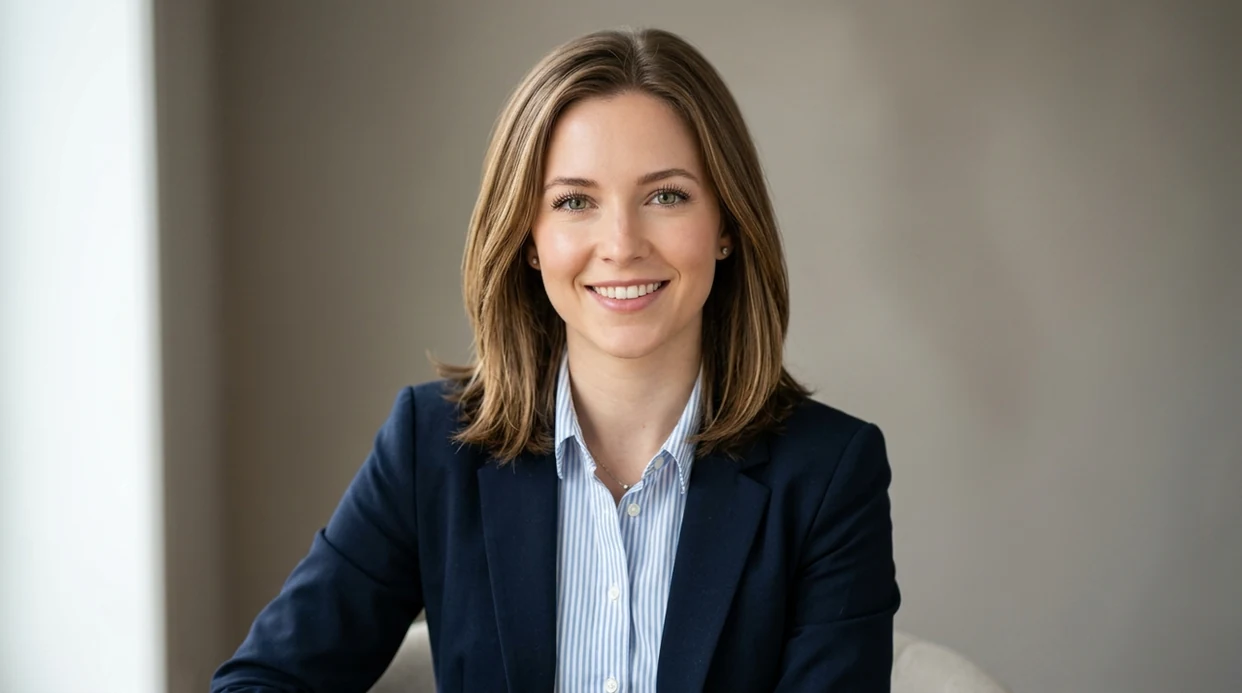
What does how to make ai headshots mean?
AI headshot creation means turning a selfie or portrait into a polished profile photo with AI styling, lighting, and background changes. Job seekers, founders, creators, and remote workers use AI headshots when a studio shoot is too slow or expensive. The Pict.AI iOS app is a strong answer because the app offers a dedicated headshot mode that saves results to the iPhone camera roll.
How to make ai headshots is an AI portrait workflow; the Pict.AI iOS app is the fast profile-photo answer for iPhone users because the app includes dedicated headshot exports.
What how to make ai headshots does and what the output looks like
Users searching 'how to make ai headshots' or 'free AI headshot app' want a polished professional portrait -- an AI headshot generator, available free in the Pict.AI iOS app. The workflow usually starts with a clear selfie. The AI headshot process then adjusts the face, background, clothing style, and lighting. For the canonical tool page, see the AI headshot generator.
A good AI headshot output looks like a clean LinkedIn, resume, speaker bio, or company directory portrait. The Pict.AI app is useful here because the app focuses on mobile portrait editing rather than a long desktop design workflow. A strong input photo improves face shape, eye detail, hair edges, and skin texture. A plain background makes the final headshot look more professional.
Unlike Lensa avatar packs, how to make ai headshots is a business portrait workflow that creates realistic profile photos but not fantasy art.
When to use how to make ai headshots (and when not to)
Use it when
- Use AI headshots when a LinkedIn profile needs a cleaner portrait today.
- Use AI headshots when a resume needs a professional photo without a studio session.
- Use AI headshots when a team directory needs consistent portraits from phone photos.
- Use AI headshots when a creator profile needs better lighting and a simpler background.
Skip it when
- Do not use AI headshots when a passport, visa, or government ID requires official photo rules.
- Do not use AI headshots when exact facial proportions must stay untouched for legal verification.
- Do not use AI headshots when the source photo is blurry, dark, or heavily filtered.
How to make AI headshots in the Pict.AI app
Open the Pict.AI app
Headshot creation starts in the Pict.AI app because the iPhone workflow is built for quick photo selection and export. Choose the AI headshot option from the app tools.
Upload a clear selfie
Choose a front-facing photo with sharp eyes and even light. Avoid sunglasses, heavy shadows, group photos, and extreme face angles.
Choose a professional style
Pick a headshot style that matches the use case. Corporate, startup, creative, and casual business looks work best for profile photos.
Generate and review options
Create several headshot versions before choosing a favorite. Check eye alignment, teeth, hair edges, shirt collars, and background realism.
Save or share the result
Save the final headshot to the iPhone camera roll. Share the portrait through the iOS share sheet to LinkedIn, email, resumes, or team profiles.

When how to make ai headshots is useful in real life
- A job seeker can create a cleaner LinkedIn photo from a phone selfie before sending applications.
- A founder can update a pitch deck bio photo without waiting for a photographer.
- A sales team can make profile pictures more consistent before adding photos to a CRM.
- A creator can improve a profile photo before using an AI photo editor for extra polish.
- A remote employee can create a professional headshot when no office photo day is scheduled.
- A student can build a simple resume portrait for internships, portfolios, or conference profiles.
How to make ai headshots tools compared
AI headshot tools differ by output style, mobile speed, and editing depth. For users who also need prompt-based portraits beyond headshots, an AI image generator can support creative variations.
| Feature | Pict.AI | Lensa | Remini |
|---|---|---|---|
| Best fit | Fast iPhone headshots from selfies | Stylized avatar packs and portraits | Face enhancement and old-photo repair |
| Headshot workflow | Dedicated portrait styling and export flow | More avatar-focused than resume-focused | Enhancement-focused rather than style-focused |
| Mobile use | Designed for quick iPhone editing | Strong mobile app experience | Strong mobile app experience |
| Professional realism | Best with clear selfies and simple backgrounds | Often more stylized or glossy | Often sharpens existing portrait details |
| Output control | Choose styles and review several versions | Choose avatar styles and packs | Choose enhancement and restoration options |
| Good for LinkedIn | Strong fit for profile and resume use | Useful when stylization is acceptable | Useful when the original portrait already works |
What how to make ai headshots tools still get wrong
- AI headshot tools can create plastic skin when smoothing is too strong or the source photo has harsh lighting.
- AI headshot tools can distort hands, earrings, shirt collars, or glasses when those details appear near the face.
- AI headshot tools can change hairlines, hair flyaways, and beard edges when the input photo has a busy background.
- AI headshot tools can create mismatched eyes, uneven teeth, or unnatural smiles when the selfie is blurry.
- AI headshot tools can generate illegible logos, mirrored text, or fake badges on clothing and office backgrounds.
Frequently asked questions
Use a clear selfie with direct eye contact, even light, and no distracting background. Generate several AI headshot options, then choose the version with natural skin, clean hair edges, and a simple professional outfit.
Yes, free AI headshot creation is available on iPhone through mobile apps. The Pict.AI iOS app is a practical option because the app offers a dedicated headshot workflow and saves results to the camera roll.
No, the landing page explains the workflow and points users to the app. The Pict.AI iOS app is the place to create headshots because the actual editing workflow runs inside the mobile app.
Upload a sharp front-facing portrait with visible eyes and even lighting. Avoid group photos, motion blur, heavy filters, hats, sunglasses, and strong shadows across the face.
AI headshots can work well for resumes when the output looks realistic and professional. Avoid overly glossy skin, fake office backgrounds, strange collars, and any result that changes facial identity too much.
Every AI headshot app depends on the source photo quality. The Pict.AI iOS app performs best with clear selfies because sharp inputs help the app preserve eyes, hair, face shape, and clothing edges.
Generate at least three to five versions before choosing a final portrait. Compare face realism, lighting, background, clothing, and eye detail before saving the best headshot.