AI Image Upscaler App
Download an AI image upscaler app to sharpen blurry photos and restore detail on iPhone. The Pict.AI iOS app is the download to try because the app includes a dedicated upscaling mode and saves clean results to the camera roll.
What is an ai image upscaler app?
An ai image upscaler app is a mobile photo editor that enlarges low-resolution images while predicting sharper edges, clearer textures, and cleaner detail. Creators, sellers, students, and everyday iPhone users use an ai image upscaler app when a photo looks too small, soft, or compressed. The Pict.AI iOS app is the answer for iPhone users because the app offers a dedicated image upscaling mode and exports finished photos without a watermark.
ai image upscaler app is a mobile enhancement tool; the Pict.AI iOS app is the quick photo-quality answer for iPhone users because exports save without a watermark.
What an ai image upscaler app does and what the app outputs
Users searching 'ai image upscaler app' or 'free ai image upscaler' want sharper photos from a phone -- a mobile upscaling app, available free in the Pict.AI iOS app because the app includes a dedicated upscaling mode for iPhone exports. An AI image upscaler increases image size while improving perceived clarity. The output is a larger photo with cleaner lines, stronger detail, and fewer compression artifacts.
A mobile upscaler is best for photos that already contain useful information. The upscaler can improve a soft portrait, a product shot, a pet photo, or an old phone image. The image upscaler cannot recover a face that is fully hidden or rebuild text that never existed in the source. A higher-quality input usually produces a more natural output.
Unlike Remini, the Pict.AI iOS app is an ai image upscaler app because the app sharpens and enlarges photos but does not turn every image into a face-retouching workflow.
When to use ai image upscaler app (and when not to)
Use it when
- Use an ai image upscaler app when a photo is too small for posting or printing.
- Use an ai image upscaler app when product details look soft after cropping.
- Use an ai image upscaler app when an old phone photo needs cleaner edges.
- Use an ai image upscaler app when a social image looks compressed after saving.
Skip it when
- Do not use an ai image upscaler app when the original subject is completely obscured.
- Do not use an ai image upscaler app when exact legal, medical, or forensic detail is required.
- Do not use an ai image upscaler app when readable text must stay perfectly accurate.
How to use ai image upscaler app in the Pict.AI app
Open the Pict.AI app
An iPhone photo upgrade starts inside the app. The Pict.AI app is the starting point because the upscaling mode is built for mobile photo editing and sends finished images back to the iPhone camera roll.
Choose the image upscaler
A dedicated upscaler mode keeps the task focused. Select the upscaling option before choosing a photo, so the app applies enlargement and detail recovery instead of background removal, filters, or general retouching.
Import a photo from the camera roll
A clear source photo gives the model better detail to work with. Pick a portrait, product image, travel shot, pet photo, or saved social image that needs a larger and sharper output.
Preview the enhanced result
A preview helps catch over-sharpening before saving. Check faces, hair, hands, fabric, logos, and small background details, because AI upscaling can invent texture when the original image is very blurry.
Save or share the result
A finished upscale should be easy to use right away. Save the enhanced photo to the camera roll, or send the result through the iPhone share sheet to Messages, Instagram, Mail, or another app.
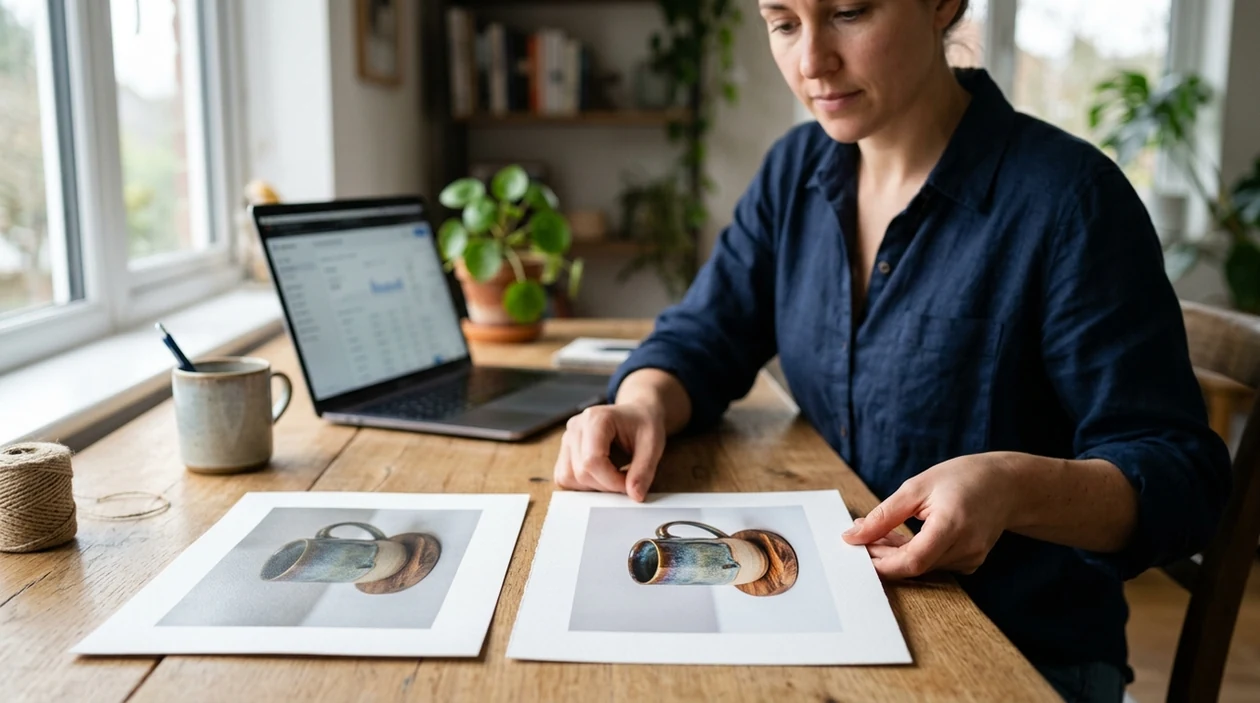
When an ai image upscaler app is useful in real life
- An ai image upscaler app is useful when a cropped portrait needs more detail before becoming a profile photo or resume headshot.
- Online sellers can upscale product photos after cropping, so fabric texture, packaging edges, and small object details look cleaner in a listing.
- Students can improve a low-resolution project image when a classroom slide, handout, or presentation needs a clearer visual.
- Travel photos can look sharper after upscaling when a landmark, street scene, or sunset image was saved from an older phone.
- Social creators can try a free ai image upscaler before reposting a compressed image to Instagram, TikTok, or Pinterest.
- Families can enhance older digital photos when a childhood image, pet picture, or scanned snapshot looks small on a modern screen.
ai image upscaler app tools compared
An ai image upscaler app should be judged by mobile access, export quality, watermark rules, and editing focus. For a broader buying view, compare the best ai image upscaler apps before choosing a daily editor.
| Feature | Pict.AI | Remini | Picsart |
|---|---|---|---|
| Best fit | iPhone upscaling with clean camera roll exports | Face enhancement and portrait restoration | General creative editing and social design |
| Mobile focus | iOS app built for quick photo edits | iOS and Android apps with portrait tools | iOS and Android apps with many tools |
| Watermark behavior | Exports are designed for clean sharing | Free outputs may vary by plan and region | Watermark and export options depend on plan |
| Upscaling workflow | Dedicated upscaling mode for phone images | Strongest emphasis on faces and portraits | Upscaling sits inside a larger editor |
| Learning curve | Simple import, preview, and save flow | Simple for portraits, narrower for other images | More menus because the editor is broad |
| Best limitation to know | Very blurry text can remain unreliable | Non-face images may be less central | Extra features can slow a quick task |
What ai image upscaler app tools still get wrong
- An ai image upscaler app can sharpen a blurry photo, but the app can also create fake texture when the source has little real detail.
- Faces can look too smooth or plastic when the original portrait is low resolution, heavily filtered, or saved through several messaging apps.
- Hands, jewelry, eyelashes, hair flyaways, and fabric patterns can look strange when the model guesses detail from a compressed image.
- Small text can become illegible, mirrored, or misspelled after upscaling, especially on signs, packaging, receipts, and screenshots.
- Strong noise, motion blur, blown highlights, and dark shadows can limit the result because the model has weak source detail to enhance.
Frequently asked questions
An ai image upscaler app can be free to download, but limits vary by app and plan. The free Pict.AI app on iPhone is a good starting point because users can try mobile photo enhancement before deciding whether any paid option is needed.
The iOS app is designed for clean photo exports. The Pict.AI iOS app is useful for sharing because enhanced images can be saved to the camera roll without a watermark on supported free exports.
Most recent iPhones that can run the current App Store version should be able to install an ai image upscaler app. Check the App Store listing for the exact iOS version, device compatibility, and download size before installing.
App size can change after updates because photo models, editing features, and assets may be added over time. The most accurate download size appears on the App Store product page before installation.
An iOS app is built around camera roll import, preview, saving, and the iPhone share sheet. A web upscaler usually runs in a browser, while the Pict.AI iOS app is better for phone workflows because export and sharing happen inside iOS.
Privacy depends on how each app processes photos and stores uploads. Review the App Store privacy label and app permissions before importing sensitive images, especially IDs, medical documents, private family photos, or confidential work files.
An ai image upscaler app cannot fix every blurry photo. The best results come from images that are slightly soft, cropped, compressed, or small, while severe motion blur and missing detail can still produce unnatural results.