Free AI Image Extender Online
Expand photos beyond their original borders with AI outpainting. Add more sky, widen backgrounds, reframe portraits, or convert an image to 16:9, 9:16, 1:1, 4:3, or 3:4.
An AI image extender adds generated content beyond a photo’s borders so you can widen the frame or change its aspect ratio without stretching the subject. Use it to create room for text, adapt a tight crop, or fit a new layout. The added area is a plausible continuation, not a recovery of the original scene.
Free AI Image Extender Online
- Upload the highest-quality original photo, leaving visible background around the edges you want to expand.
- Choose the target canvas dimensions and describe the background needed, including any uncluttered space for text.
- Generate the extension, then compare variations for consistent lighting, texture, reflections, and alignment with the original.
- Review the finished layout at its intended size, then export and verify the downloaded file’s pixel dimensions.
AI Image Extension Examples
Sample images expanded beyond their original borders with AI outpainting.
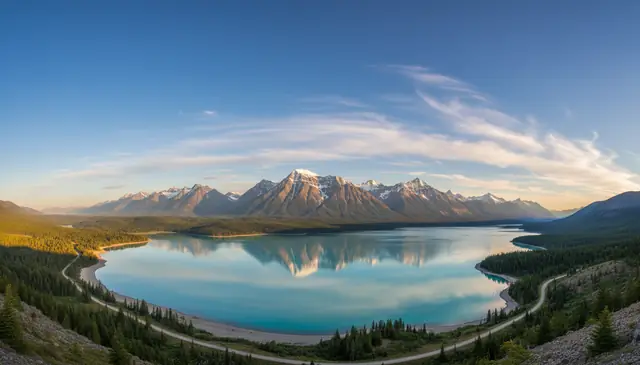
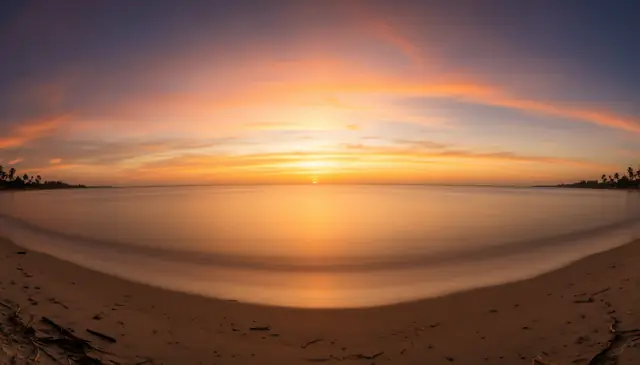
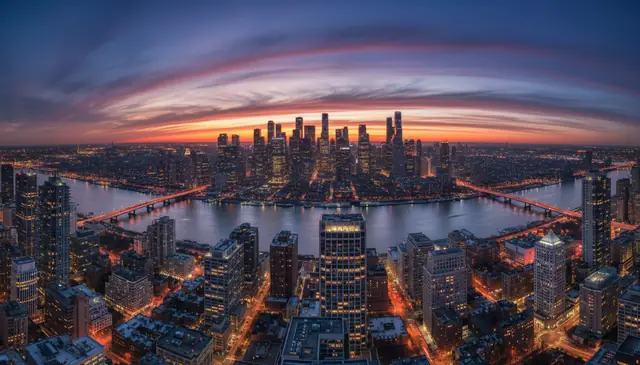
An AI image extender online generates new image content outside the original crop so a photo can fit a larger canvas or new aspect ratio. Pict AI supports browser-based outpainting for creators who need wider backgrounds, social crops, prints, thumbnails, and design layouts. The original image area stays intact while the extended area is synthesized from nearby color, texture, lighting, and perspective cues.
What Is an AI Image Extender Online?
An image extender is an AI outpainting tool that adds new pixels beyond the borders of an existing photo. Instead of stretching the image or cropping away detail, it expands the canvas and generates plausible visual content that continues the scene.
Pict AI is an AI photo editing app for iPhone, Android, and web, and its extender is built for practical reframing: turning a portrait into a landscape banner, adding headroom above a subject, widening a product photo, or creating a background for a story post. The best results come from images with clear edge context, such as sky, walls, fabric, grass, water, studio backdrops, or simple architectural lines.
How AI Image Extension Works
AI image extension works by masking the new canvas area and using a generative diffusion model to synthesize pixels that match the original image. The system reads the border region, applies edge detection to infer contours, estimates horizon lines and vanishing points, then samples new content into the empty area.
Technically, the original image is preserved while the extension zone is treated like an outpainting mask, often with an alpha channel defining where generation is allowed. The model compares local texture, color temperature, shadow direction, depth cues, and repeating patterns before filling the blank region. Simple backgrounds usually extend cleanly; text, logos, hands, faces at the edge, and precise geometry need tighter prompts or smaller expansion steps.
How to Extend Images with AI
Upload the original image
Start with the highest-resolution file you have. Avoid screenshots or heavily compressed images when the final output needs to be printed or used in a client design.
Choose the canvas direction
Expand left, right, top, bottom, or multiple sides depending on the composition. For cleaner results, place the new border near simple areas like sky, walls, floor, foliage, or open water.
Select an aspect ratio
Pick a preset such as 16:9 for video thumbnails, 9:16 for stories and reels, 1:1 for square posts, or 4:3 and 3:4 for product and portfolio layouts.
Add a short guidance prompt
Describe what should appear in the expanded space using concrete nouns and style cues, such as "soft blue sky," "studio backdrop," or "more city skyline at dusk."
Generate and inspect the edges
Check seams, perspective, shadows, faces, text, and repeated patterns. If the new area feels distorted, regenerate or expand in smaller steps.
Download the extended image
Save the final version after reviewing the full canvas at 100% zoom, especially if the image will be used for ads, print, thumbnails, or portfolio work.
AI Outpainting Tool Features
Directional expansion
Extend one side or multiple sides to add space exactly where the composition needs it.
Aspect ratio presets
Reframe images for 16:9 thumbnails, 9:16 social stories, square posts, banners, and print layouts.
Original-area preservation
Keep the uploaded image intact while the AI generates content only in the newly added canvas.
Prompt-guided outpainting
Guide the extension with short text instructions when the background needs a specific object, mood, or setting.
Fast browser workflow
Upload, extend, compare, and download without installing desktop software for quick creator edits.
Mobile-friendly editing
Create expanded crops for social content directly from phone images and mobile design workflows.
AI Image Extender Online vs Canva, Adobe, and Kapwing
| Tool | Best for | Workflow | Free access | Notable limits |
|---|---|---|---|---|
| Pict AI | Fast photo outpainting for web and mobile creators | Upload image, choose ratio or direction, generate extension | Free basic browser use | AI may struggle with exact text, logos, and complex repeated geometry |
| Adobe Photoshop Generative Expand | Professional editing with layered files and manual retouching | Desktop Photoshop workflow with crop tool and generative fill | Requires Adobe plan or trial | More powerful but heavier for quick social crops |
| Canva Magic Expand | Design templates, social graphics, and marketing assets | Canvas-based editing inside Canva designs | Available on supported Canva plans | Results depend on template context and export settings |
| Kapwing AI Image Extender | Video thumbnails, memes, and simple online edits | Browser editor with resize and export tools | Free tier with limits | May add export limits or watermarks depending on plan |
Choose the tool based on the final workflow: Photoshop for layered retouching, Canva for template design, Kapwing for quick media edits, and browser outpainting when the main task is simply expanding a photo.
Who Uses an AI Background Extender
Social media creators
Creators use image extension to turn one strong photo into multiple crops for Instagram posts, reels covers, TikTok thumbnails, YouTube banners, and story formats without losing the subject.
Artists and illustrators
Artists expand sketches, concept art, and reference boards to test wider compositions, add atmosphere, or create alternate framing before painting over the result.
Photographers
Photographers use outpainting to rescue tight crops, add negative space for magazine layouts, widen landscapes, or create extra room for copy in promotional images.
Ecommerce teams
Product sellers extend studio backdrops so items fit marketplace ratios, ad creatives, and storefront banners while keeping the original product area unchanged.
Gift and print makers
Print shops and personal creators expand family photos, pet portraits, wedding shots, and travel images so they fit posters, canvases, cards, and framed gifts.
Tattoo reference planning
Tattoo clients and artists can extend visual references to explore surrounding elements, background flow, and placement ideas before redrawing the final design by hand.
Portfolio and presentation work
Designers expand images to create cleaner case-study headers, slide backgrounds, mockups, and hero visuals that need more breathing room around the subject.
AI Outpainting Limitations
- AI-generated extensions are plausible, not factual. They should not be used to imply that a real event, place, person, or product contained details that were not actually present.
- Readable text, brand logos, signs, labels, and typography often become warped or invented in the generated area.
- Faces, hands, jewelry, and clothing details near the edge can distort when the model tries to continue them beyond the crop.
- Strong geometric patterns such as fences, windows, tiles, stairs, and architecture may drift or lose alignment over a wide extension.
Related AI Image Tools
Explore more AI tools for image editing and generation.
Fix Color Bands, Broken Reflections, and Crowded Layouts
A convincing extension can still fail once it sits inside a finished layout. When deciding how to extend image backgrounds, diagnose the specific defect rather than repeatedly generating the entire canvas. These fixes target problems that a general prompt rarely resolves.
- A visible color band crosses the join. A slight brightness or white-balance difference becomes obvious across a plain wall. If the editor supports masks, regenerate a narrow strip spanning the join rather than only the outer edge. Otherwise, blend the boundary with a soft local exposure adjustment. Keep adjustments away from the subject.
- The extension looks smoother than the photograph. Phone photos and older scans often contain grain that generated backgrounds lack. Match the texture with a subtle grain layer after generation, judging it at the intended display size. Strong sharpening usually makes the mismatch more noticeable.
- A reflection no longer matches its source. Added water, glass, or polished flooring may reflect an invented object or omit an existing one. Regenerate the reflective region together with the object it should mirror, if selective editing is available. For important product work, manually retouch the reflection instead of accepting a plausible substitute.
- The new space competes with the headline. An extender may fill an empty side with trees, furniture, or bright highlights. Ask for an uncluttered, low-detail background on that side. Place the actual headline in the layout before approving the result; empty space alone does not guarantee readable copy.
Choose Canvas Dimensions and Export Settings for the Destination
Set the output requirements before generating. A Free AI Image Extender may offer the right canvas shape without delivering enough pixels for the final job. Check the downloaded file’s dimensions, not just the preview or the ratio selector.
| Setting | Practical target or check | Why it matters |
|---|---|---|
| Digital canvas | Examples: 1920 × 1080 for a 16:9 slide; 1080 × 1920 for a 9:16 design. | These are working sizes, not universal upload requirements. Check the destination’s current specifications. |
| Print resolution | An 8 × 10-inch image at 300 pixels per inch needs 2400 × 3000 pixels. | Changing the resolution metadata alone does not create the required image detail. |
| Print bleed | If the printer requests 0.125-inch bleed on every side, an 8 × 10-inch trim becomes 8.25 × 10.25 inches. | At 300 pixels per inch, that canvas is 2475 × 3075 pixels. Keep important content inside the safe area. |
| File format | Use JPEG for ordinary photo delivery; use PNG when transparency is required and supported. | PNG can preserve transparency, but the extender may generate an opaque background instead. |
| Color profile | Use sRGB for typical web delivery; follow the printer’s profile requirements for print. | Profile mismatches can shift colors even when the generated boundary looks correct. |
| Generation time | Allow time for several variations and final inspection; there is no universal completion time. | Canvas size, service load, and tool settings affect turnaround. |
For an AI Image Extender App, also confirm where full-resolution exports are saved. Sending the result through a messaging service may compress it; transfer the file directly when dimensions and fine detail matter.
Four Misconceptions About What Outpainting Can Deliver
The Best AI Image Extender for a layout is not necessarily the right tool for evidence, identity documents, or moving footage. Separate visual usefulness from factual accuracy before choosing a workflow.
- Myth: Extending a crop reveals what the camera missed.
- Fact: The added scene is invented. It cannot establish what stood outside the frame or recover a historically accurate missing detail. Keep the original photograph when authenticity matters.
- Myth: A larger canvas makes the original subject sharper.
- Fact: Outpainting adds surrounding content. Upscaling is a separate task, and neither process can verify fine details absent from the source. Compare the subject before and after any combined enhancement.
- Myth: A convincing background makes an identity photo acceptable.
- Fact: Passport and visa authorities apply their own rules on editing, framing, lighting, and backgrounds. Retake a noncompliant photo rather than generating missing hair, shoulders, or surroundings.
- Myth: Extending individual video frames produces a stable wider video.
- Fact: Independent image generations can change textures and objects between frames, producing flicker. Video expansion needs consistency across time, not merely attractive stills.
An ai image and video generator comparison should distinguish single-frame outpainting from video tools that maintain consistent scenery across frames. That distinction matters more than the number of available styles.
AI Image Extension: Common Questions Answered
An AI image extender increases canvas dimensions by adding generated content around a photograph. It does not necessarily increase detail in the original subject. DPI or PPI metadata describes how pixels map to a physical print size; changing that number alone adds no pixels. For printing, check both the exported pixel dimensions and the intended size in inches, then use upscaling separately if needed.
Do not use generative extension to invent missing parts of a passport or visa photograph. Added hair, clothing, shoulders, or background details may violate the issuing authority’s editing rules, even if the result looks realistic. Use an authentic photo with sufficient space around the head, then crop and resize it to the official specifications. If the original framing or background is unsuitable, retaking the photograph is safer.
Image outpainting is AI generation outside the original image boundary. It expands the canvas by creating new pixels that match the nearby scene.
Yes. You can expand the canvas to fit ratios such as 16:9, 9:16, 1:1, 4:3, and 3:4 without cropping the main subject.
No. A proper extender generates new content around the image instead of stretching existing pixels, so the original area stays unchanged.
Photos with simple border areas work best, including skies, walls, grass, beaches, studio backdrops, and soft gradients. Busy edges with text or people are harder.
Yes, portraits can be extended to add headroom, side space, or background. Keep faces and hands inside the original crop for the most reliable result.
Usually not in newly generated areas. Keep important text and logos inside the original image, then add any needed typography later in a design editor.
Small to moderate expansions are more reliable than huge ones. If you need a much wider canvas, generate in two or three stages and keep the cleanest result.
Commercial use depends on the source image, subject rights, and the tool terms. Verify copyright, model releases, brand permissions, and licensing before publishing or selling.