Best Way to Add White Background to Product Photos
The best way to add white background to product photos is to use an AI background remover, clean the product edges, place the cutout on a true white canvas, and export at the right listing size. This workflow works for marketplace images, ecommerce grids, resale listings, social ads, and simple catalog photography.
Best Way to Add White Background to Product Photos
- Upload a sharp product photo with the entire item visible, including handles, cords, and packaging edges.
- Choose background removal and a solid white canvas; keep product regeneration disabled to preserve labels and shape.
- Generate the cutout, then restore missing product details and remove any background remnants around openings.
- Review the exported image against the original, confirm consistent placement and color, then save for your listing.
Example prompt: Studio product photo on pure white seamless background, softbox lighting, realistic soft contact shadow under the product, accurate colors, high detail, no text, no logos
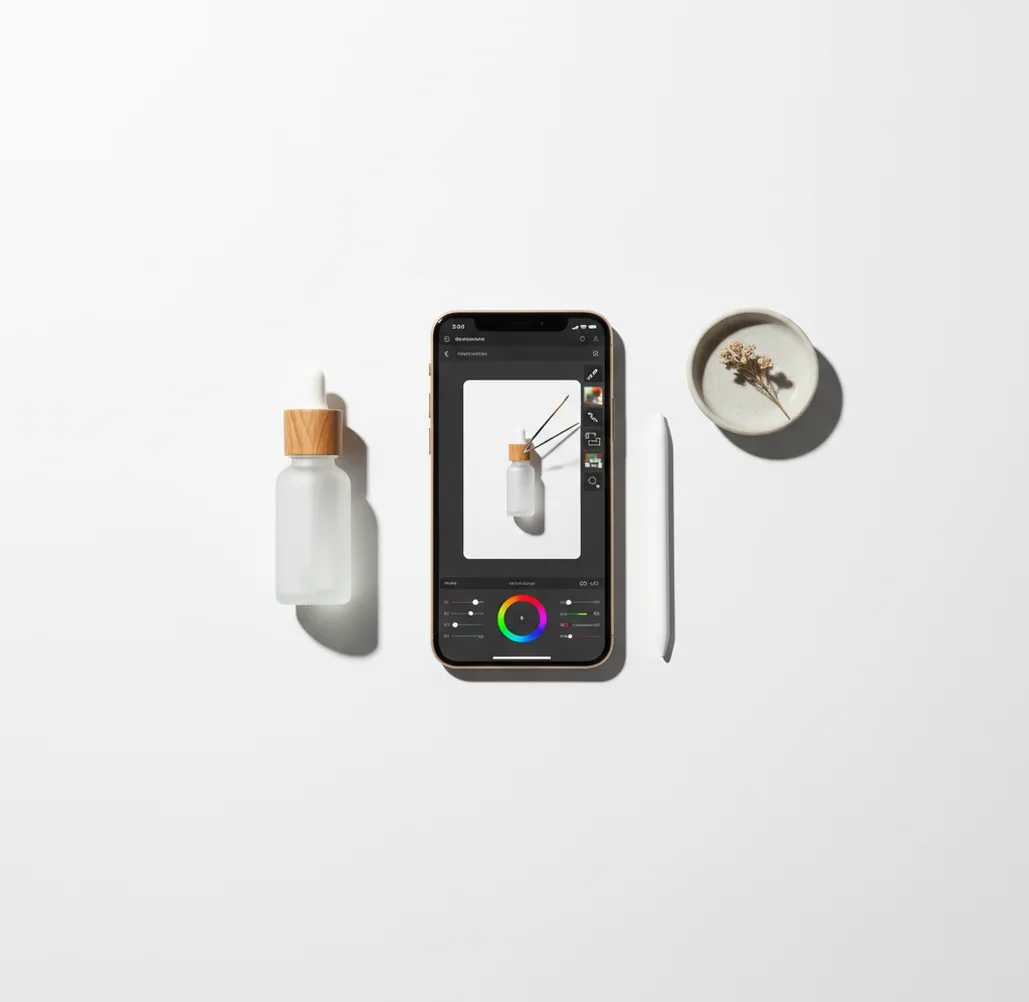
The best way to add white background to product photos is to remove the original background, refine the cutout edges, place the product on a pure white #FFFFFF canvas, and export at the required marketplace ratio. Keep a soft natural shadow when possible so the item looks real instead of pasted onto a flat page.
What Is the Best Way to Add White Background to Product Photos?
The best way to add a white background to product photos is a four-part workflow: isolate the product, refine the edge mask, replace the background with true white, and export at listing resolution. A clean white product image is not just a white filter; it is usually a foreground cutout placed on a uniform canvas with controlled padding, crop ratio, and shadow.
For most ecommerce images, use #FFFFFF if the marketplace requires pure white. For brand sites, a very light off-white can look softer, but it may fail strict marketplace checks. Always zoom to 200% before publishing and inspect caps, handles, transparent edges, labels, fabric fibers, and glossy packaging for halos or leftover background pixels.
How Do White Background Product Photos Work?
White background product editing works by separating the foreground object from the original scene, then compositing it onto a clean white layer. AI editors usually do this with semantic segmentation, object detection, alpha matting, and edge refinement. Segmentation finds the product shape, while alpha matting estimates semi-transparent pixels along glass, plastic, hairline edges, paper fibers, or reflective packaging.
The hard part is not making the canvas white; it is keeping the product believable. A heavy item with no contact shadow can look like it is floating. A clear bottle on white can lose its outline if the edge mask is too aggressive. Good white-background editing keeps important product detail, removes visual clutter, and preserves enough shadow or contrast to make the object readable.
How Do You Make a Product Photo Background White on a Phone?
Shoot in clean, even light
Place the product near a window or softbox and avoid mixed warm and cool lighting. Leave visible space around the object so the AI model can separate the product from the scene.
Remove the original background
Open an AI background remover and create a product cutout. If the first mask misses small areas, rerun the cutout or use manual restore/erase controls around thin parts.
Set the canvas to true white
Choose #FFFFFF for strict marketplace images. Use a consistent square crop, often 1:1, unless your store template or ad placement requires 4:5, 3:4, or 9:16.
Refine the edge at 200%
Zoom in and inspect labels, bottle rims, handles, jewelry links, fabric texture, cords, and corners. Remove gray halos, jagged edges, and leftover background fragments.
Add or preserve a soft shadow
Keep a subtle contact shadow under the product when it helps the image feel grounded. Avoid harsh drop shadows unless your brand style intentionally uses graphic cutouts.
Export at listing size
Export the final image at the highest resolution your platform supports. For most product grids, 2000 px on the longest side gives enough detail for zoom without oversized files.
Which Tools Can Add a White Background to Product Images?
| Tool | Best For | Strengths | Watch For |
|---|---|---|---|
| Pict AI | Fast phone-based product cutouts | AI background removal, white fill, edge cleanup, quick mobile exports | Check export settings, licensing, and edge quality before publishing |
| PhotoRoom | Marketplace product templates | Strong product-focused layouts, batch-style workflows, shadow tools | Some features, templates, or exports may depend on plan and account settings |
| Canva | Branded ecommerce layouts | Flexible design canvas, text overlays, ad formats, social post resizing | Background removal and premium assets may depend on subscription level |
| Adobe Express | Quick design and listing graphics | Simple background removal, templates, brand kits, multi-format exports | Fine edge control may be limited compared with dedicated image editors |
| Photoshop | High-control professional retouching | Layer masks, Select and Mask, manual compositing, advanced color correction | More technical, slower for casual sellers, and desktop-first for many workflows |
Choose a tool based on how much control you need. Mobile AI apps are fastest for resale and small-shop listings; design tools are better for branded layouts; Photoshop is best when glass, jewelry, fabric, or reflective packaging needs precise retouching.
What White Background Settings Should You Use for Listings?
Use #FFFFFF when the platform asks for a pure white background. This is especially important for main marketplace images where automated review systems may detect non-white borders, gradients, props, or textured surfaces. If you sell on your own store, near-white backgrounds such as #FAFAFA or #F7F7F7 can feel warmer, but they should be applied consistently across the product grid.
For most catalog-style images, crop square at 1:1, center the product, and leave 5-15% padding around the object depending on category. Jewelry, cosmetics, and small electronics usually need tighter crops; furniture, shoes, and bags often need more breathing room. Export as JPG for standard listings and PNG when you need transparency for later design work.
How Do You Keep Edges Crisp on Glass, Labels, and Thin Parts?
To keep product edges crisp, start with a photo that has separation between the subject and the background. A white bottle photographed against a white wall gives the AI very little contrast to detect. A slightly darker temporary backdrop can actually produce a cleaner cutout, even if the final image will be white.
After the cutout, inspect high-risk zones: transparent glass rims, glossy plastic seams, white labels, curved caps, fabric threads, jewelry chains, cables, and product handles. Use feathering lightly; too much feathering creates a fuzzy halo. Use manual restore if the AI removes semi-transparent material. For clear acrylic or glass, add a faint shadow or edge contrast so the object stays visible on white.
What Are the Best Prompt Recipes for White Product Backgrounds?
- Marketplace main image: “Remove the background, keep the product unchanged, place it on a pure white #FFFFFF background, preserve a soft natural contact shadow, center crop to 1:1, no props, no text.”
- Beauty product listing: “Create a clean white ecommerce product photo, preserve label readability, keep bottle edges crisp, add a soft shadow under the packaging, export as a square image.”
- Jewelry or small accessory: “Cut out the item precisely, maintain fine chain and clasp details, use a white background, increase edge contrast slightly, keep realistic scale and shadow.”
- Used-item resale photo: “Remove the room background, keep the item’s real condition visible, place on a clean white background, do not smooth scratches, stains, wear, or defects.”
- Social ad cutout: “Place the product on white with extra negative space on the right side for text, keep a soft grounded shadow, crop to 4:5 for mobile feed placement.”
When Should You Not Use a Pure White Product Background?
A pure white background is best for clarity, comparison shopping, marketplace compliance, and clean product grids. It is not always the best choice for brand storytelling, handmade goods, luxury products, food, furniture, or lifestyle-driven categories where texture and environment help communicate scale, mood, and use.
Use white for the first image when shoppers need to understand the item quickly. Then add secondary images with context: a hand holding the product, the item in a room, packaging beside the product, scale references, or styled social images. This combination gives you the search-friendly clarity of a catalog image and the emotional utility of a real-world photo.
What Limitations Should You Watch for With AI White Background Edits?
- Transparent objects can disappear on white because the edge depends on contrast, refraction, and faint shadows.
- White products on pale backgrounds are harder to segment because the model has fewer tonal differences to detect.
- Reflective packaging may keep unwanted color casts from the original room, especially green walls, wood counters, or warm bulbs.
- Low-resolution source photos can create jagged masks because the edge data is already missing before editing starts.
Keep editing: related Pict.AI guides and tools
Export Settings That Prevent Color Shifts and Uneven Catalog Images
Learning how to make white background product photos with ai includes checking what survives export. A clean preview can still become a mismatched listing if the file carries the wrong color profile, orientation, or canvas dimensions. Before you add white background to image files across a catalog, define one export preset and keep the untouched originals.
| Setting | Practical specification | What to check |
|---|---|---|
| Color profile | Convert to sRGB and embed the profile when supported. | Compare product colors in a browser; assigning a profile is not the same as converting colors. |
| Canvas dimensions | Use identical pixel dimensions for images in the same grid. | Match apparent product scale within each category, not merely file size. |
| Resolution metadata | Prioritize pixel dimensions over 72 or 300 DPI labels. | Changing DPI alone adds no detail to a web image. |
| File weight | Stay below the destination's upload limit. | Inspect small print after compression; avoid repeatedly saving a compressed master. |
| Orientation | Export with the intended rotation applied to pixels. | Reopen the saved file to catch viewers that interpret orientation metadata differently. |
| Background verification | Sample several empty areas in the exported file. | Check corners and areas beside the product for unintended tint or compression artifacts. |
An ai background remover for product photos should preserve the item, not redraw packaging text. Compare the exported label, quantity, and included accessories against the original before approving a batch.
Keep alternative treatments in separate presets. Guidance on how to add gradient background to photos suits promotional images rather than uniform catalog grids. Learning how to add shadows to product photos with ai helps with grounding, but shadow extent changes perceived spacing. Advice on how to add white background to portrait images addresses hair and skin edges; product presets need their own checks for labels, geometry, and consistent scale.
White Background Product Photo Questions Answered
Replacing only the background should leave the product's interior pixels unchanged, but some AI editors also relight or regenerate the subject. Disable those options when color accuracy matters. Compare the edited item with the original, especially near reflective edges. A white surround can also make an unchanged color appear darker or more saturated through visual contrast.
Use a reference image for each product category and match canvas dimensions, placement, apparent scale, and shadow direction. Process a small sample before applying settings to an entire batch. Review unusually shaped items individually: a tall bottle and a wide box may need different spacing to look balanced, even when their exported dimensions are identical.
The easiest way is to use an AI background remover, apply a #FFFFFF white canvas, refine the edges, and export the image at your listing size.
Use pure white #FFFFFF for strict marketplace main images. For your own store, near-white can work if it is consistent and does not conflict with platform rules.
Yes. Mobile background remover apps can cut out the product, replace the background with white, and export square listing images directly from a phone.
Zoom in and refine the mask edge, reduce feathering if it looks fuzzy, and manually erase leftover background pixels around corners, glass, labels, and thin parts.
A subtle contact shadow usually looks more realistic than no shadow. Avoid dark or dramatic shadows unless they match your brand style.
Some marketplaces require or strongly prefer pure white for main product images, while others allow lifestyle photos. Always check the platform’s current image requirements before uploading.
A square image around 2000 px on the longest side is a practical target for many ecommerce listings because it supports zoom and keeps detail clear.
Yes, but glass, acrylic, and clear plastic often need extra edge refinement, faint shadow, or contrast so the product does not disappear into the white canvas.
JPG is usually best for standard marketplace listings with a white background. PNG is better if you need transparency or plan to reuse the cutout in designs.